To backup Azure Files in ESE, do the following:
1. Find the Azure file share you want to backup. Click on Connect and then on Show Script.
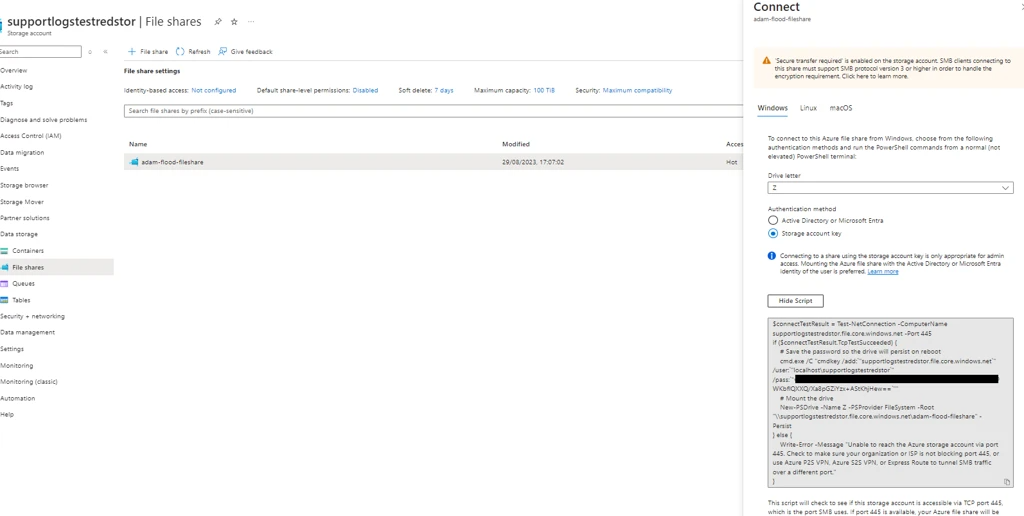
2. Copy the script to a text editor. Locate the storage account location, username and password in the script (highlighted in the example below):
$connectTestResult = Test-NetConnection -ComputerName supportlogstestredstor.file.core.windows.net -Port 445
if ($connectTestResult.TcpTestSucceeded) {
    # Save the password so the drive will persist on reboot
    cmd.exe /C "cmdkey /add:"supportlogstestredstor.file.core.windows.net" /user:"localhost\\supportlogstestredstor" /pass:"*********""
    # Mount the drive
    New-PSDrive -Name Z -PSProvider FileSystem -Root "\\supportlogstestredstor.file.core.windows.net\adam-flood-fileshare" -Persist
} else {
    Write-Error -Message "Unable to reach the Azure storage account via port 445. Check to make sure your organization or ISP is not blocking port 445, or use Azure P2S VPN, Azure S2S VPN, or Express Route to tunnel SMB traffic over a different port."
}
3. Enter these details into the ESE network volume settings.
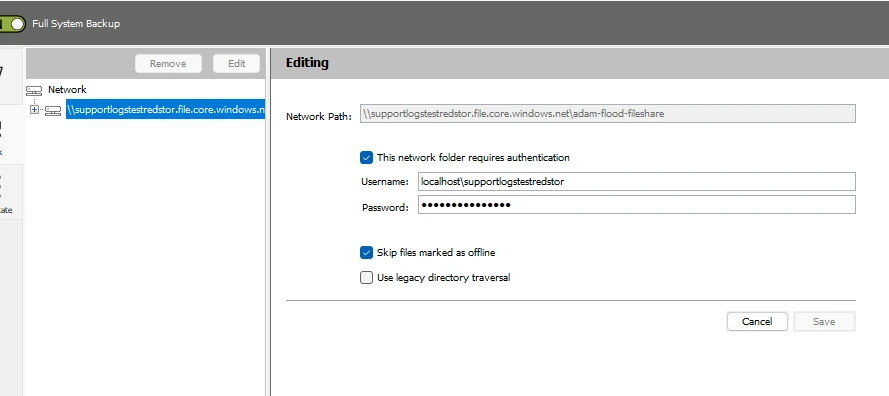
You should now be able to backup as normal.
Recovery
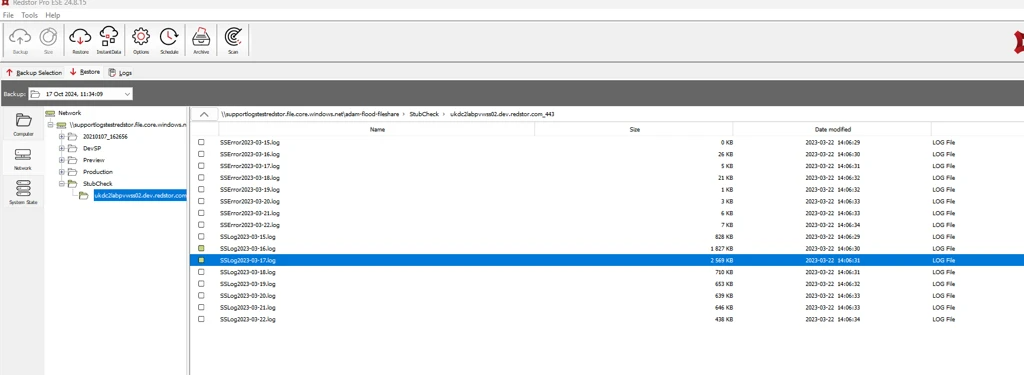
You can restore back to the Azure file share location using the ESE restore interface for network locations. For more on restoring from ESE, see Article 1133.
Was this article helpful?
That’s Great!
Thank you for your feedback
Sorry! We couldn't be helpful
Thank you for your feedback
Feedback sent
We appreciate your effort and will try to fix the article