PAGE CONTENTS
- How to add a StorageServer to a Storage Pool
- How to rename a StorageServer
- How to remove a StorageServer from a Storage Platform
How to add a StorageServer to a Storage Pool
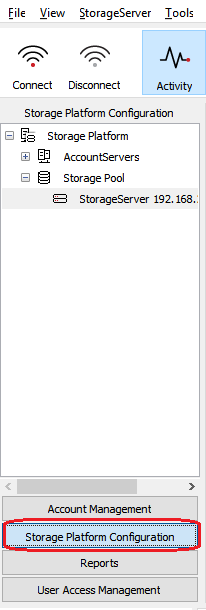
1. Open the Storage Platform Console in the Storage Platform Configuration view.
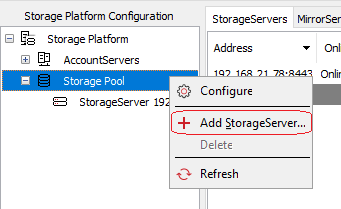
2. Right-click the Storage Pool node and click Add StorageServer.
3. In the dialog box that appears, type the required StorageServer information in the boxes provided.
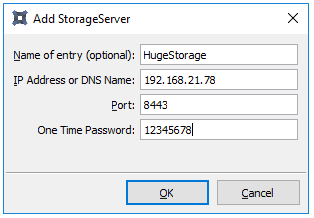
The One Time Password is the server GUID.
- To obtain this, open the settings.xml file located in C:\ProgramData\Attix5 Pro\SS_Service\.
- If the folder C:\ProgramData is not visible, go to the View tab in your file explorer and tick the box Hidden items in the Show/hide section. The folder should become visible.
- Find the ServerGuid entry in the settings file and copy the entire alphanumeric string within it (the format will be something like a40b136e-b8b1-4326-b1d2-c27d301kd2e5). Paste this into the One Time Password field.
4. Click OK to save your changes..
How to rename a StorageServer
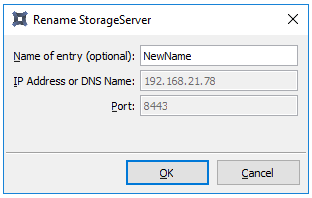
1. In the Console, right-click the relevant Storage Server's name and click Rename.
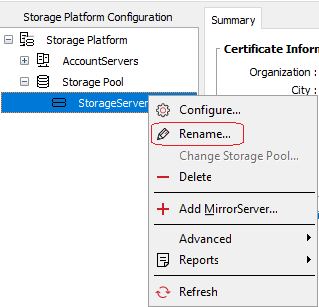
2. In the dialog box that appears, type a new display name in the Name of entry (optional) field and click OK.
How to remove a StorageServer from a Storage Platform
1. In the Console, right-click the relevant Storage Server's name and click Delete.
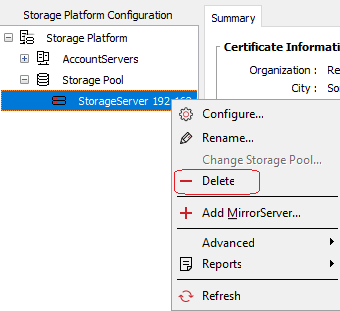
2. In the confirmation dialog box that appears, click Yes.
Was this article helpful?
That’s Great!
Thank you for your feedback
Sorry! We couldn't be helpful
Thank you for your feedback
Feedback sent
We appreciate your effort and will try to fix the article