There are two ways to check if a backup account's encryption key is valid: the Check encryption key functionality in the ESE agent, and the Encryption Key Checker tool.
PAGE CONTENTS
- How to validate an encryption key using ESE
- How to validate an encryption key using the Encryption Key Checker
- How to validate multiple encryption keys using the command-line
How to validate an encryption key using ESE
1. Open the ESE agent whose encryption key you want to validate.
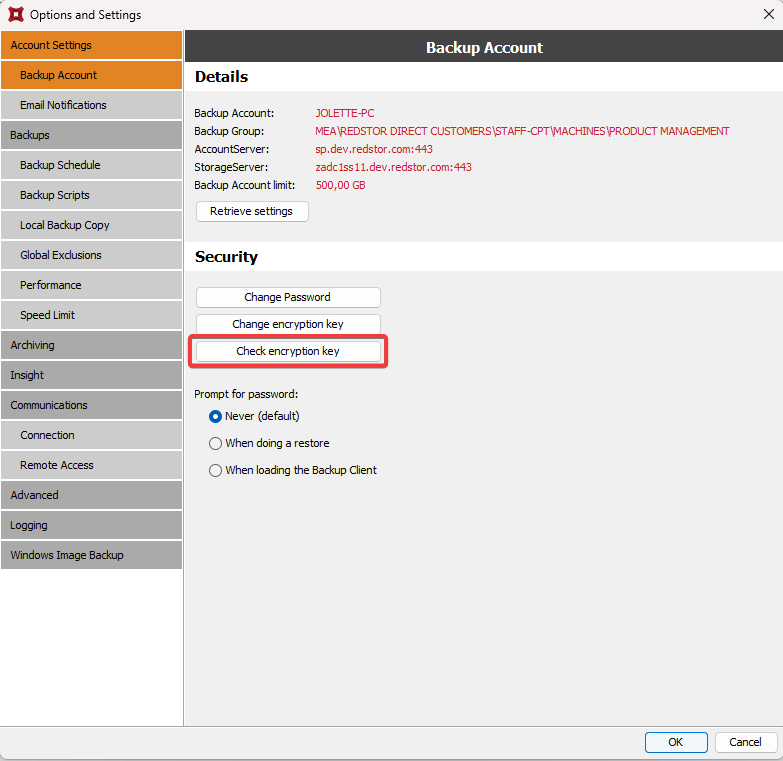
2. Go to Options > Account Settings > Backup Account > Security and click on Check encryption key.
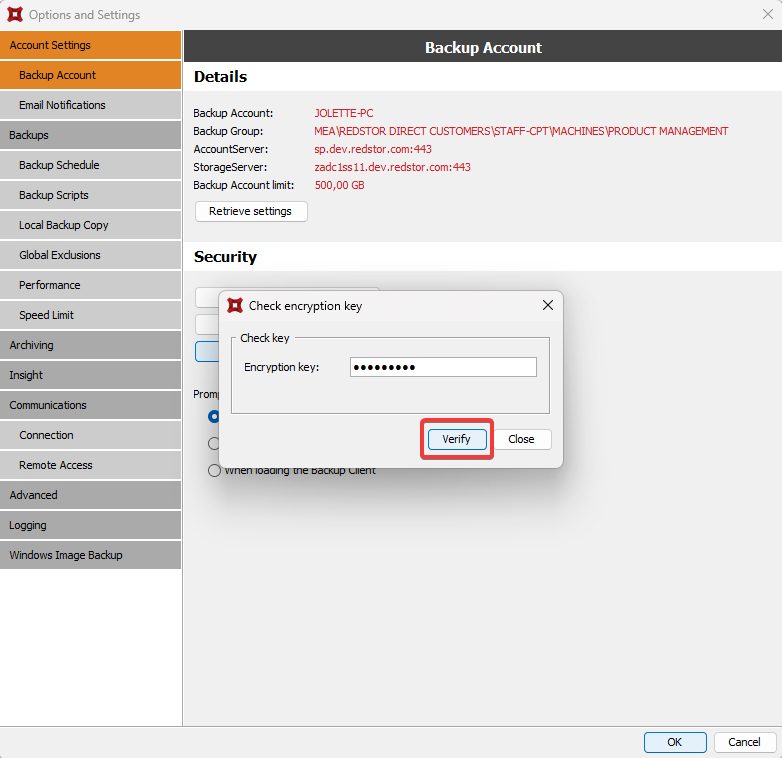
3. Enter the encryption key you have on record for this account and click on Verify.
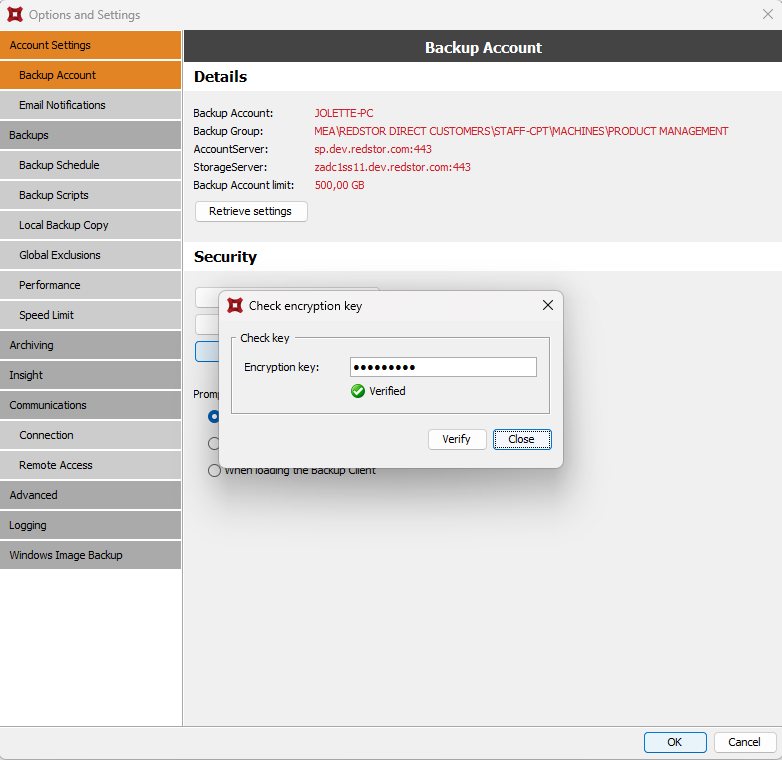
If the encryption key is valid, you will see the result "Verified".
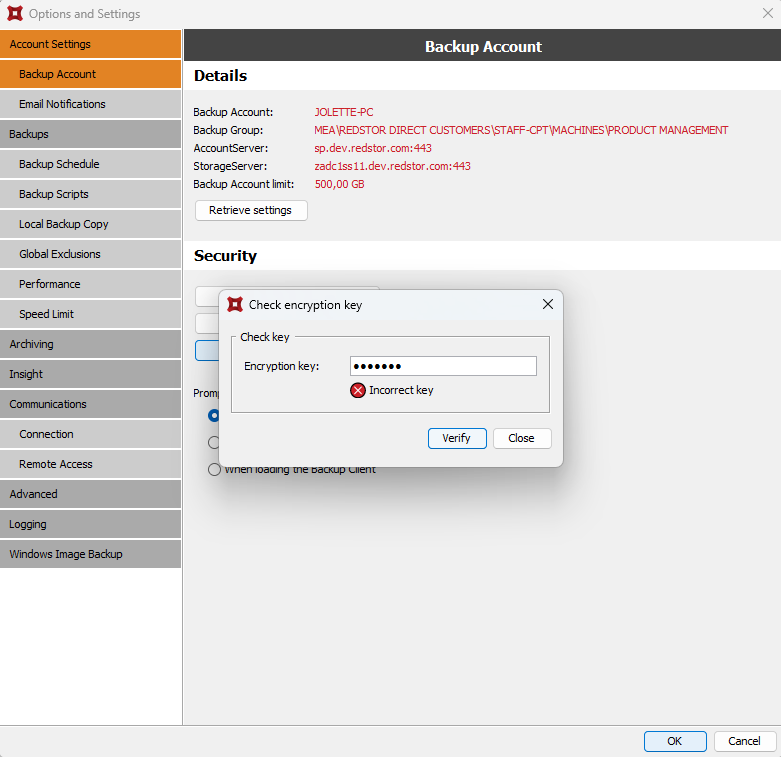
If you see "Incorrect key", check your input and reattempt the validation.
If the validation still fails, you will need to log a ticket with our support team. It may be possible to retrieve the correct key if you have a Group Certificate in place, but only if certain conditions are met. Read more in Article 009.
How to validate an encryption key using the Encryption Key Checker
The Encryption Key Checker is a lightweight downloadable application that validates a specified account's encryption key and displays the result. The tool checks one account at a time, but you can use the command-line to check multiple accounts at a time (see below).
To validate an encryption key:
1. Download the Encryption Key Checker from our Utilities page here.
2. Extract the contents of the downloaded zip file and run the "EncryptionKeyChecker.exe" file.
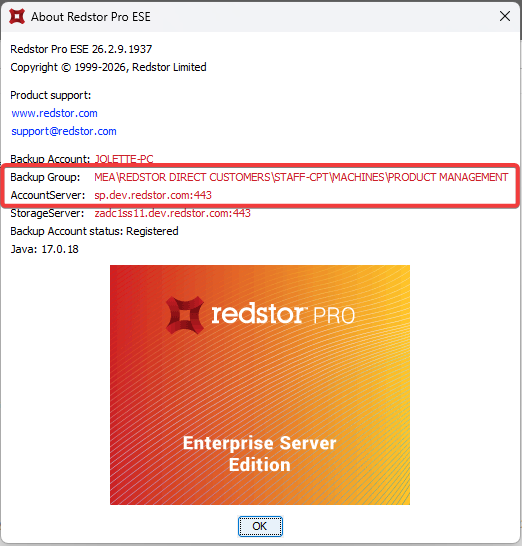
3. Ensure you have the AccountServer and group path for this account ready. These can be obtained from within the ESE agent by going to Help > About Redstor Pro ESE.
4. Complete all the fields:
Account Server: Full AccountServer address, e.g. sp.dev.redstor.com:443.
Group\Account: Full path of the account up to collection level, e.g. MEA\REDSTOR DIRECT CUSTOMERS\STAFF-CPT\MACHINES\PRODUCT MANAGEMENT.
Encryption Key: Encryption key you have on record for this account.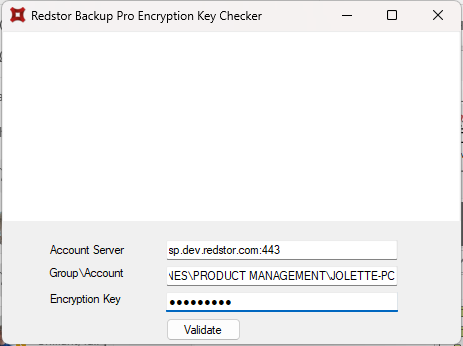
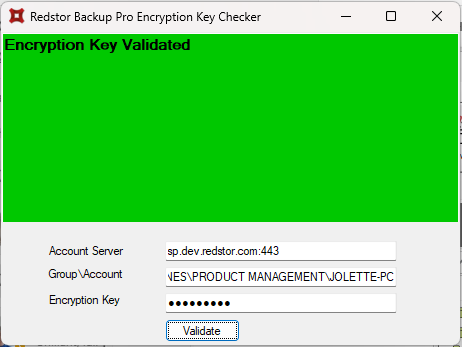
5. Click Validate. If the encryption key is valid, you will see the result "Encryption Key Validated".
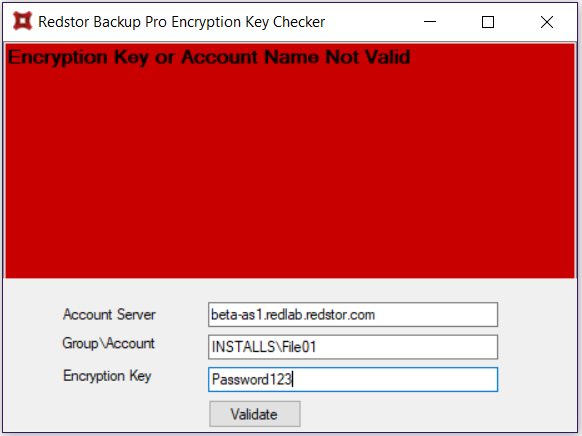
If you see "Encryption Key or Account Name Not Valid", check your inputs and reattempt the validation.
If the validation still fails, you will need to log a ticket with our support team. It may be possible to retrieve the correct key if you have a Group Certificate in place, but only if certain conditions are met. Read more in Article 009.
How to validate multiple encryption keys using the command-line
1. Create a comma-delimited text file containing the list of accounts whose encryption keys you want to validate. The format for each row should be as such:
[AccountServer],[Collection\Group\Account name],[Encryption key]
Example:
sp.pro.redstor.com,Demo\BobWin10,enigma123
2. Run the Encryption Key Checker from the command line as follows:
EncryptionKeyChecker.exe -scriptmode -sourcefile=[input file] -outfile=[output file]
Example:
EncryptionKeyChecker.exe -scriptmode -sourcefile=C:\Temp\ListOfAccountsToCheck.csv -outfile=C:\Temp\ListOfResults.csv
Once all the keys have been validated, the output file will indicate the result for each account, for example:
sp.pro.redstor.com,Demo\BobWin10,enigma123,Encryption Key Validated
sp.pro.redstor.com,Demo\CharlieWin2008r2,password,Encryption Key or Account Name Not Valid
Was this article helpful?
That’s Great!
Thank you for your feedback
Sorry! We couldn't be helpful
Thank you for your feedback
Feedback sent
We appreciate your effort and will try to fix the article