You can use the RedApp to manage your customer/partner organisations (known as companies in the RedApp). You can add, edit and delete companies using the guides below.
Note: If you need to delete accounts, see Article 1384.
PAGE CONTENTS
- How to add a new customer/partner
- How to move a customer to a different partner
- How to edit a customer/partner
- How to delete a customer/partner
How to add a new customer/partner
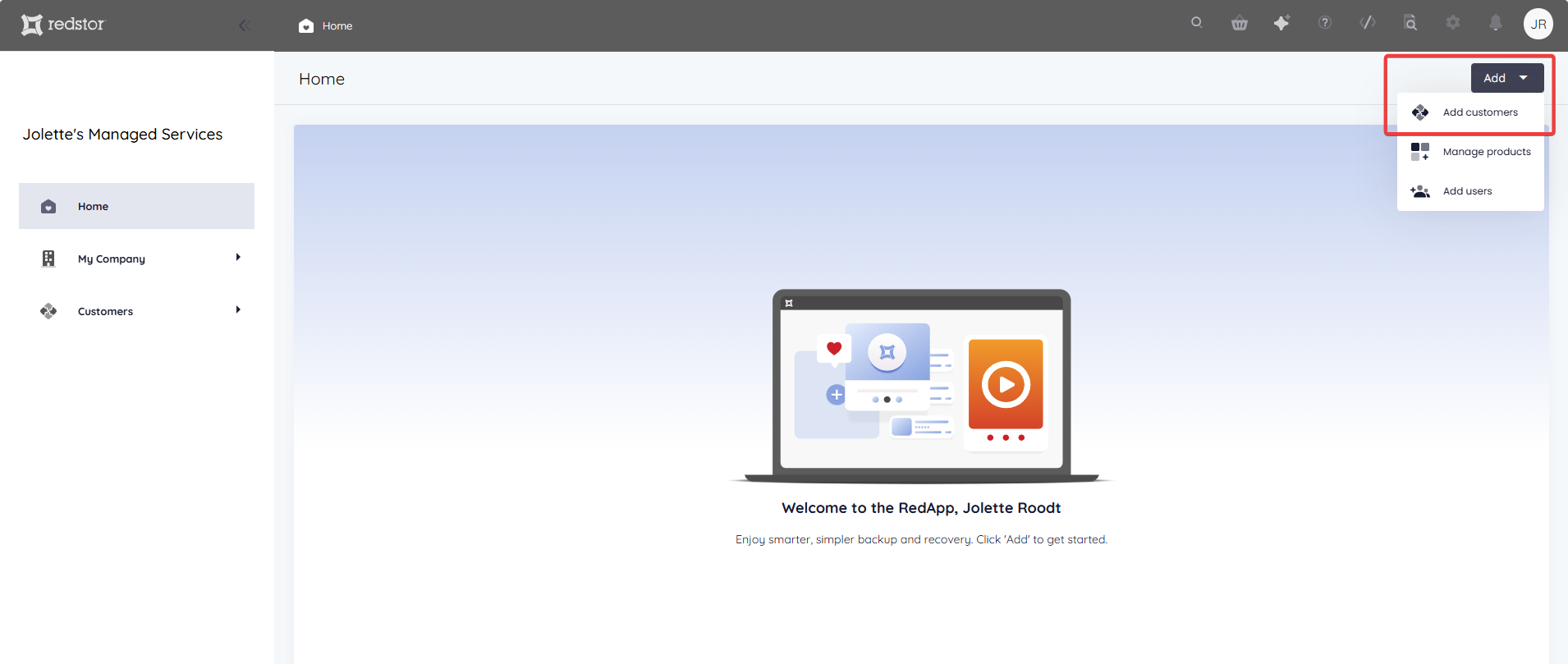
1. To add a customer or partner under your own organisation, go to Add > Add customers at the top right of the RedApp home page.
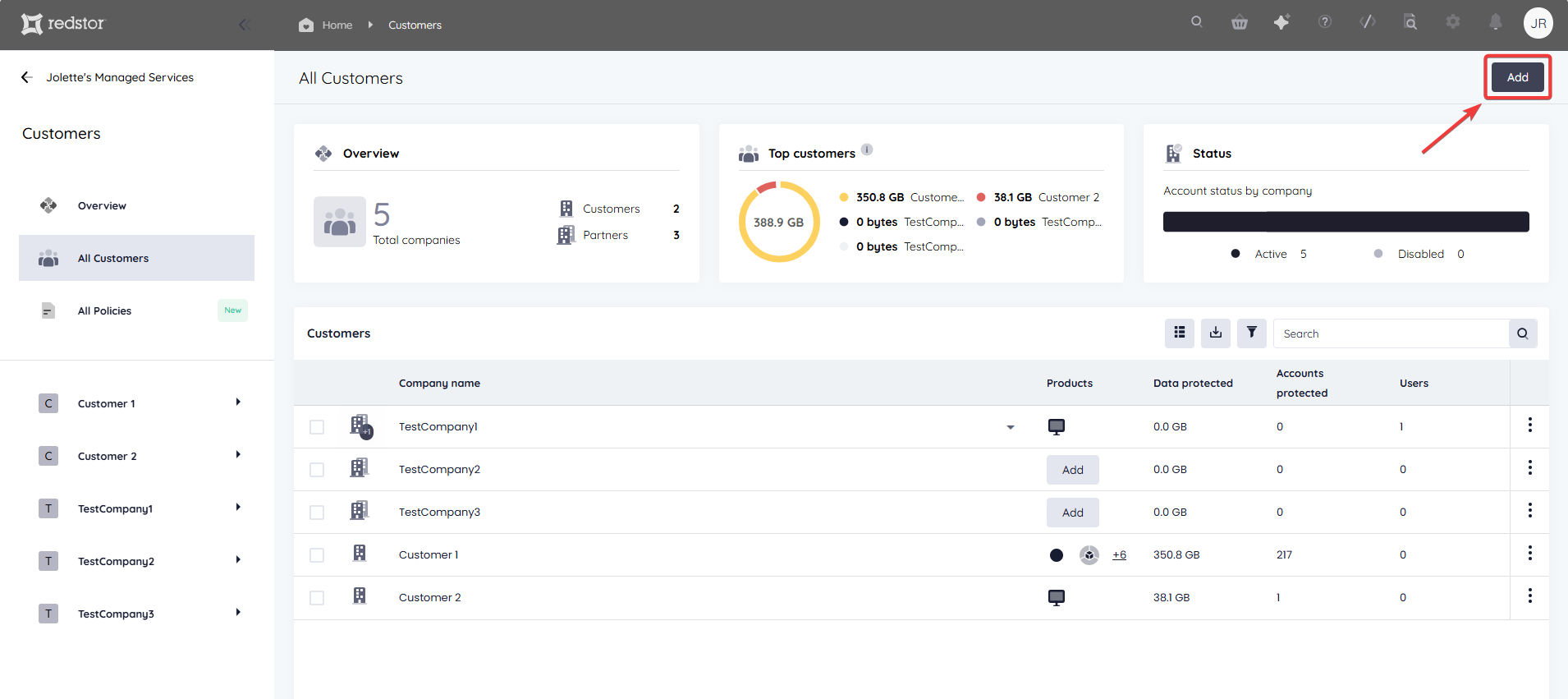
You can also click on All customers in the sidebar and then go to Add at the top right.
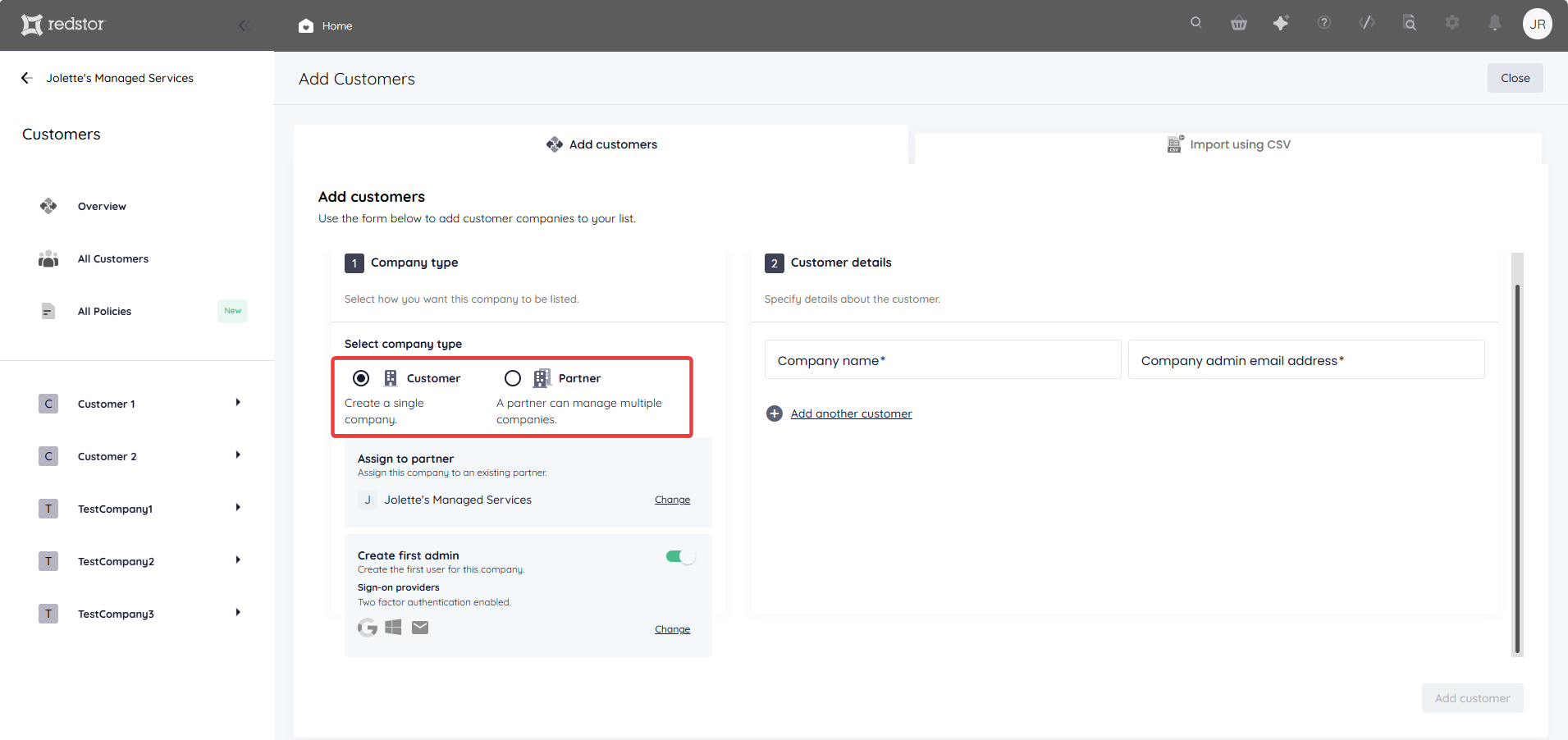
2. In the Add customers tab, select whether you want to add an end customer or a partner.
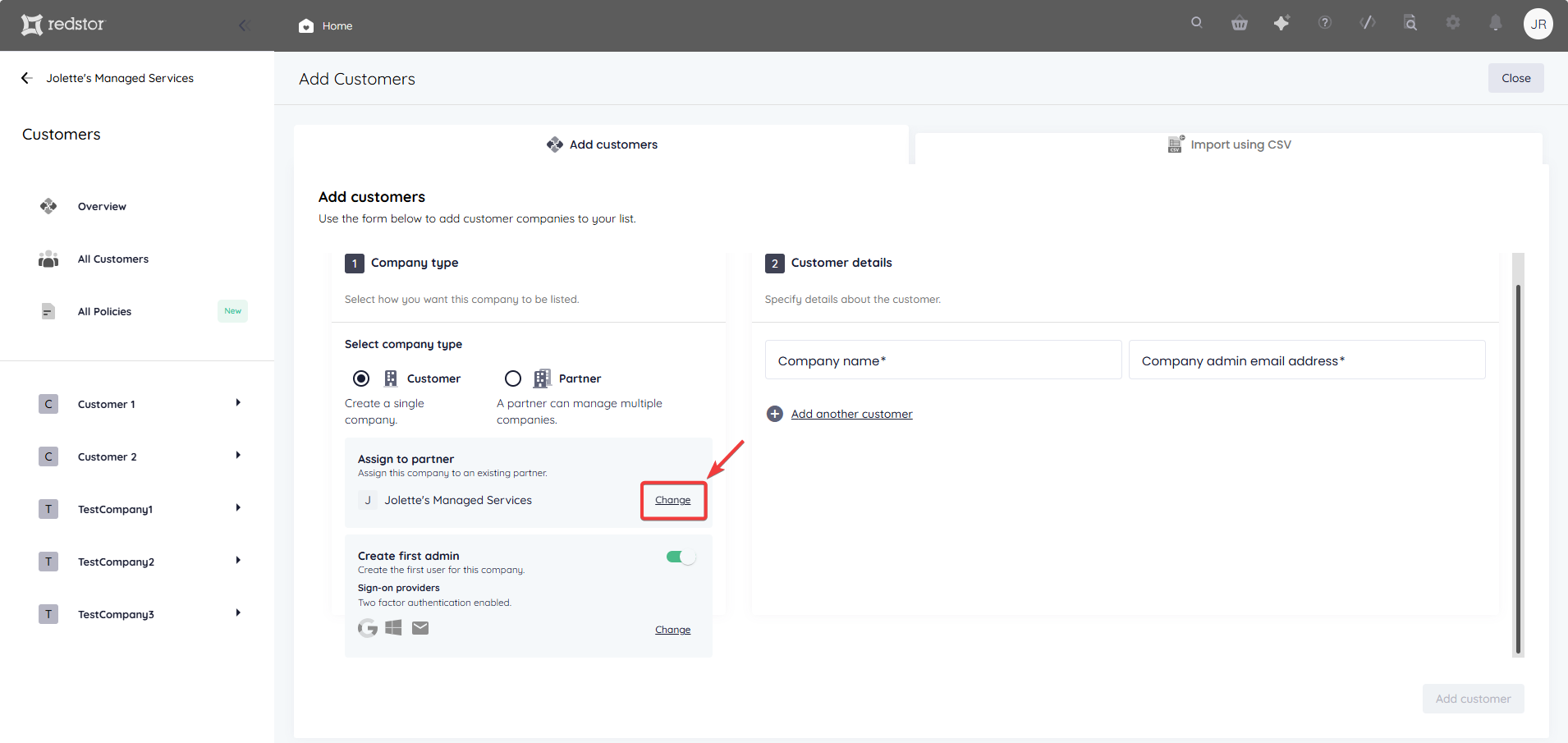
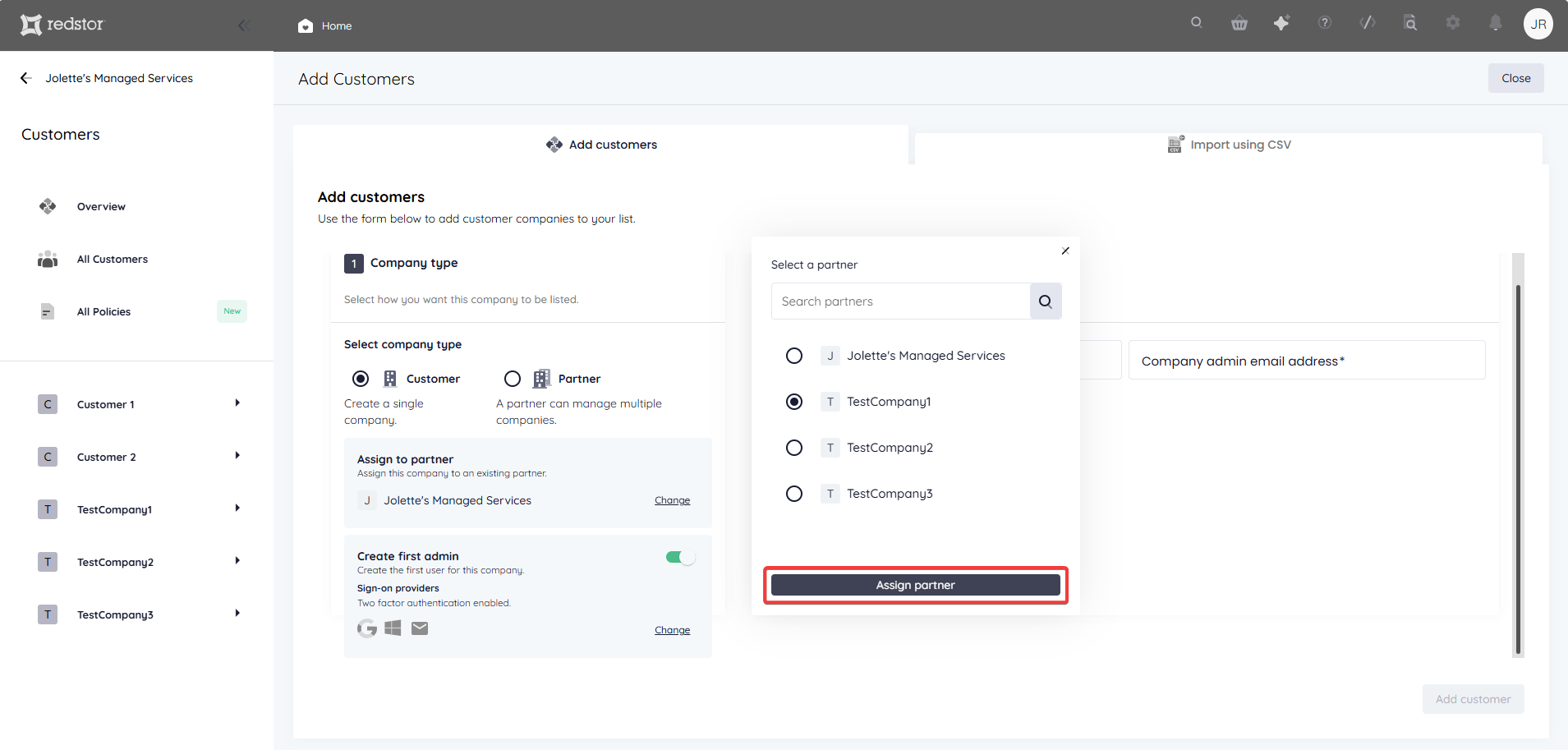
3. By default, the new customer/partner will be assigned to the organisation for which your currently active RedApp user is an admin. To assign the customer to a different partner (if your organisation has subpartners), click Change.
In the dialog that opens, select a different partner and click Assign partner.
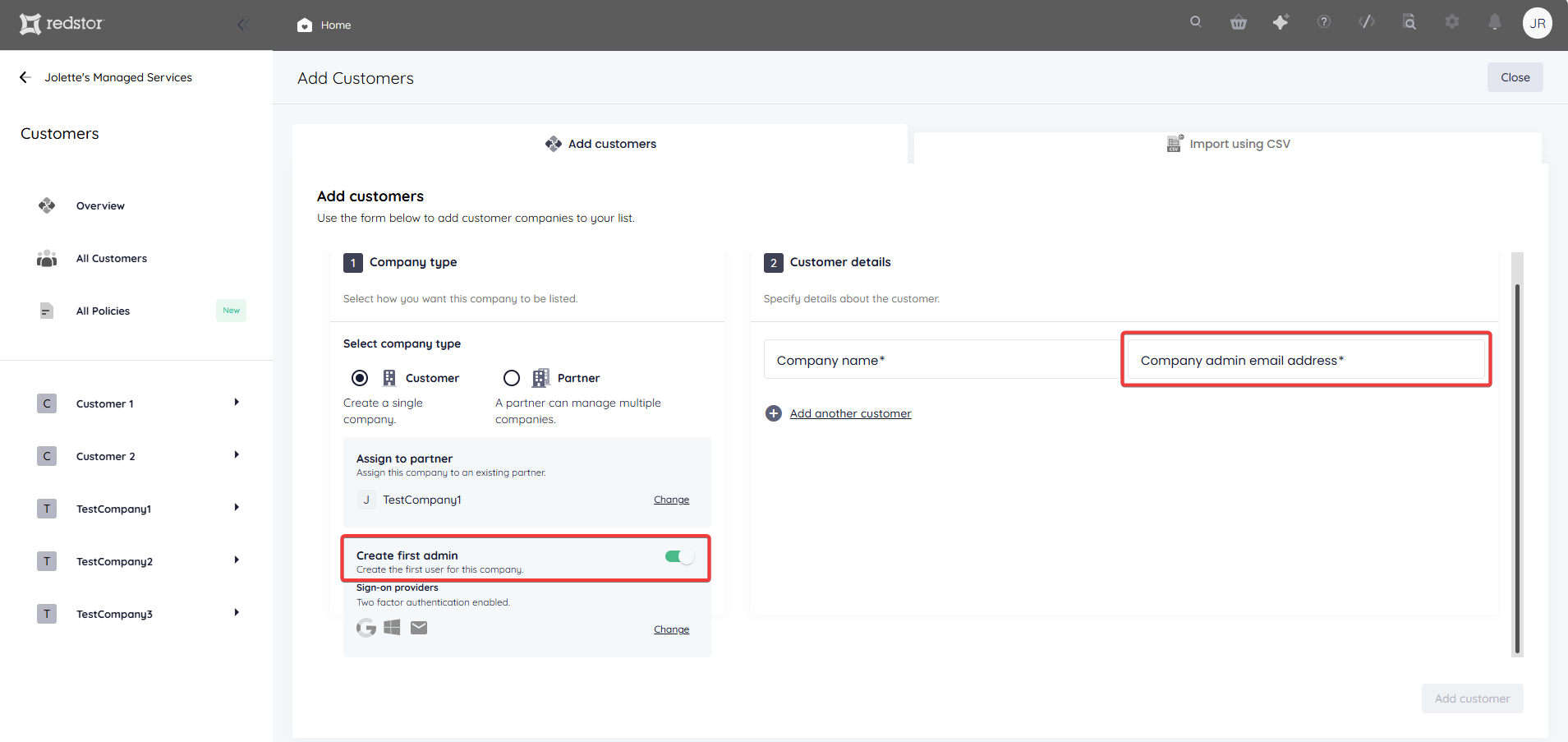
4. If you want to create a first admin user for the new customer/partner, enable Create first admin. The email address you enter in the workspace to the right will be used.
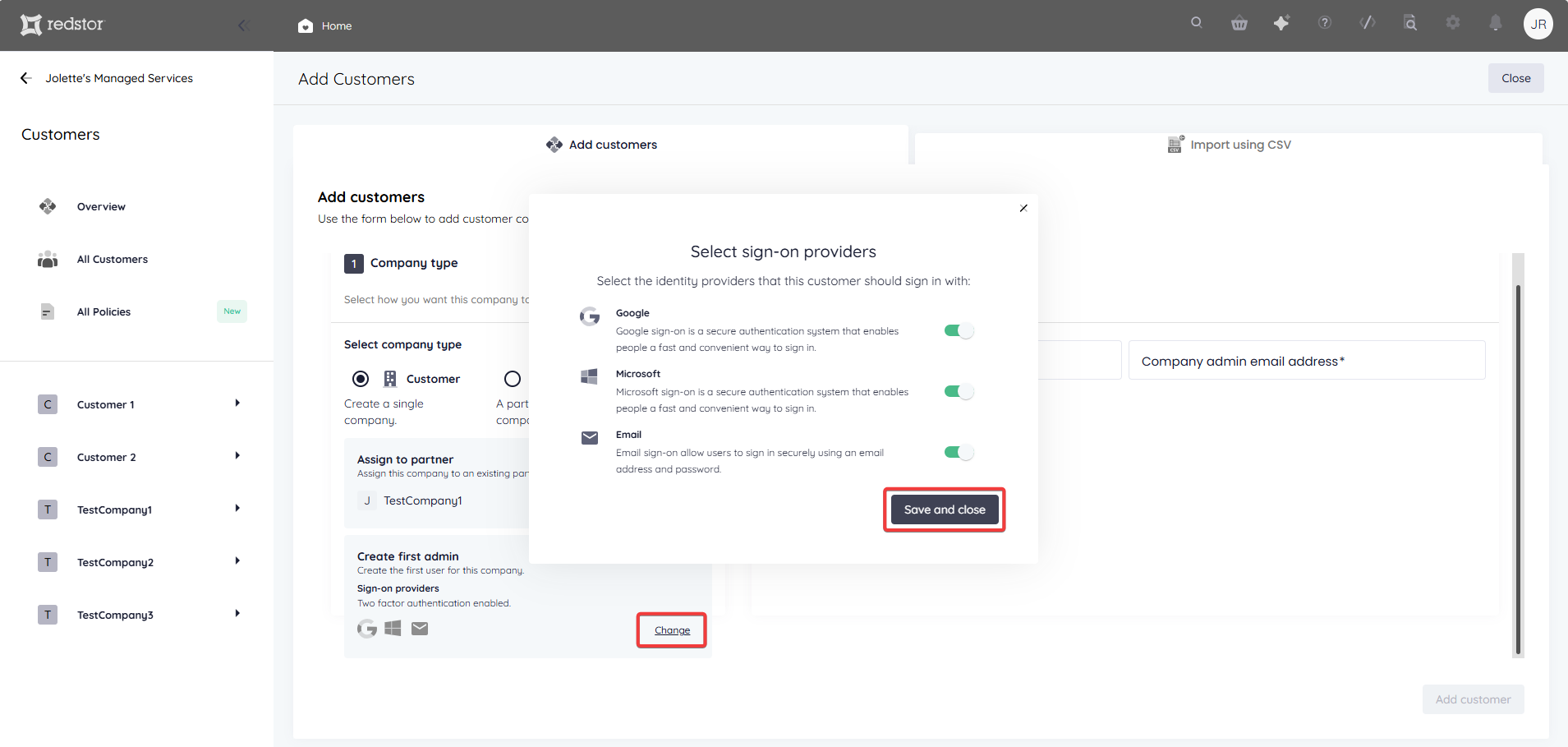
To change the identity providers this customer/partner can use to log into the RedApp, click Change under Sign-on providers. In the dialog that opens, select the allowed provider/s and click Save and close.
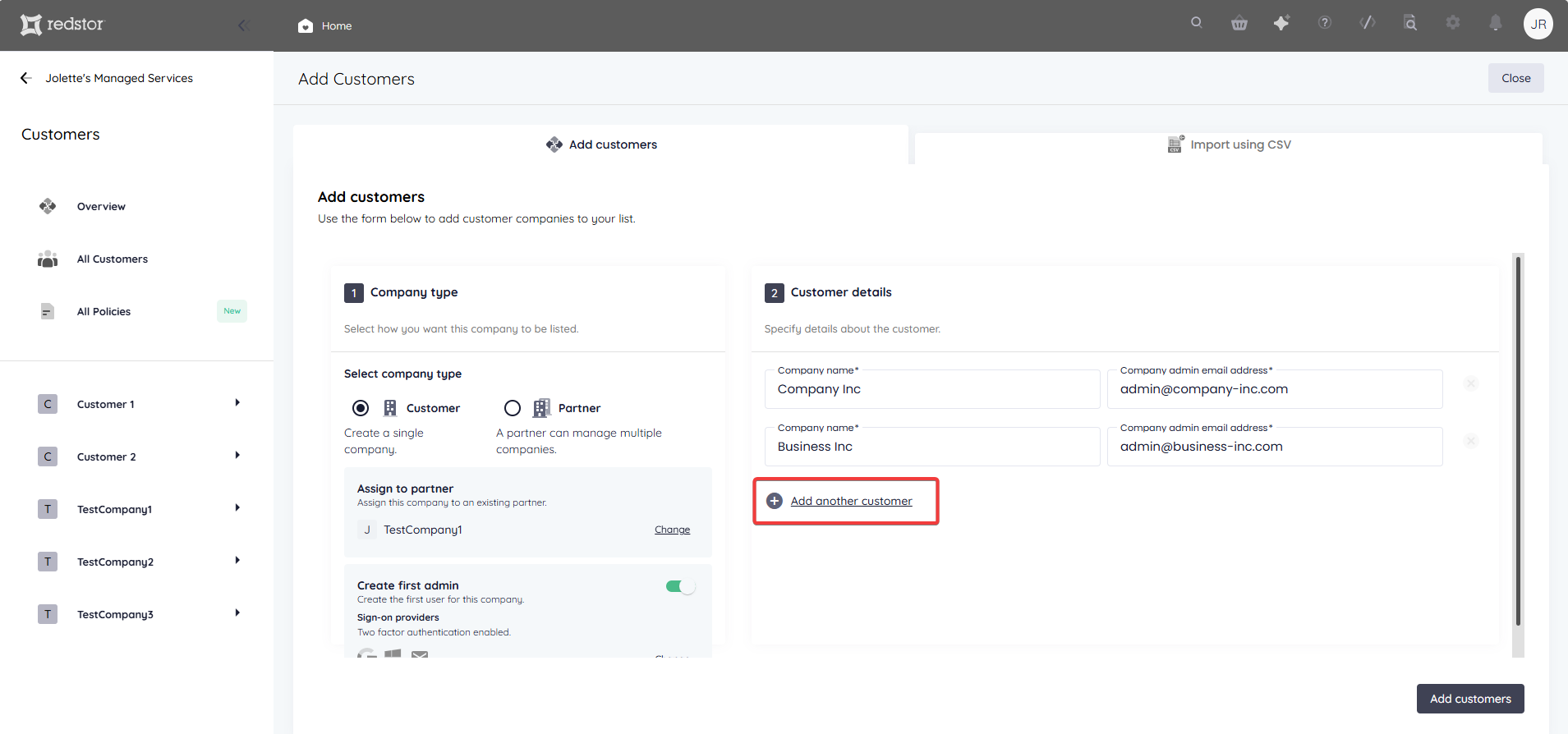
5. Provide a name for this customer/partner. You can also add additional customers/partners that share the settings you have specified here. For each additional customer/partner, click Add another customer.
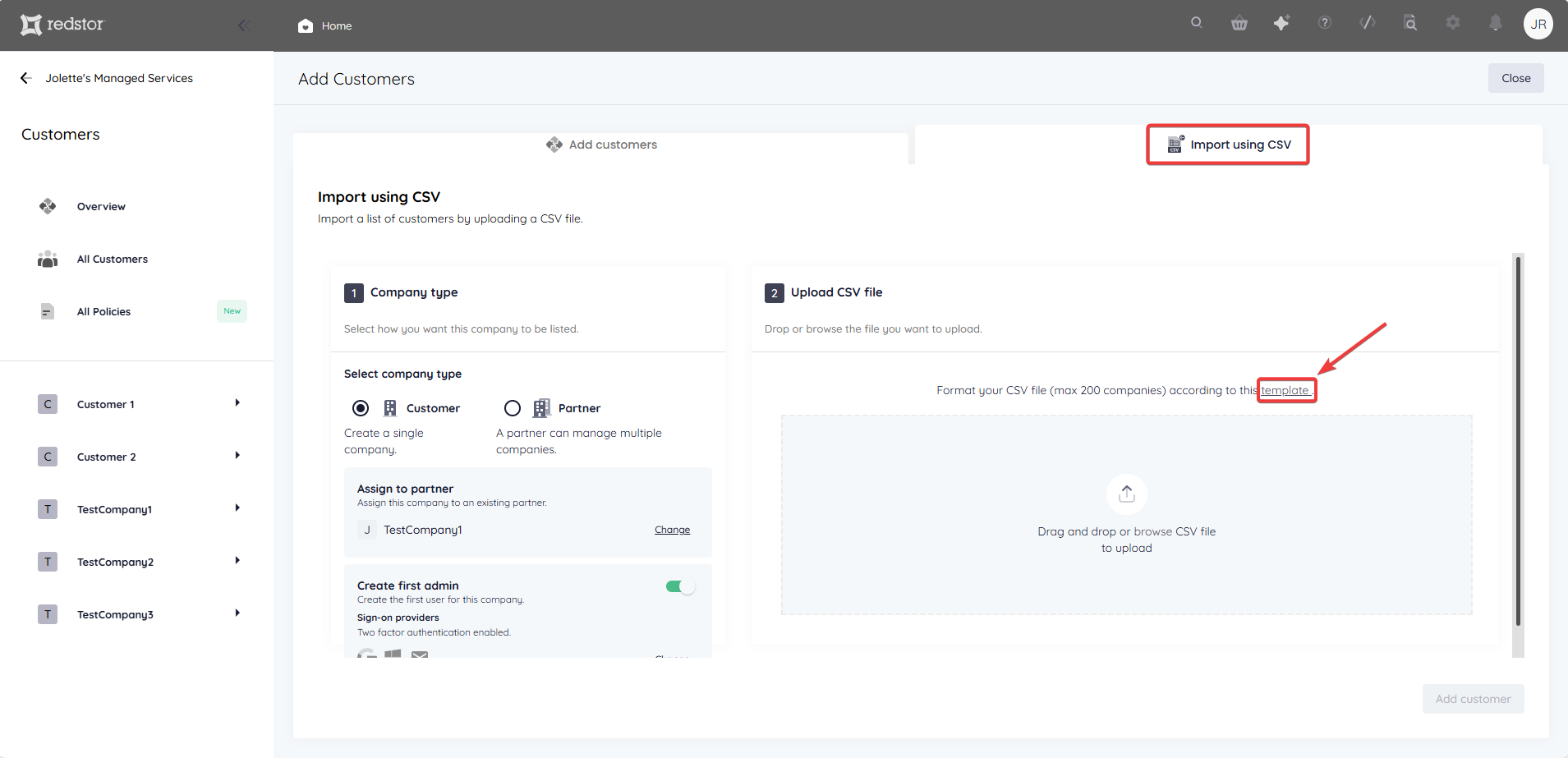
If you have a large number of customers/partners to add, you can go to the Import using CSV tab. Download our provided CSV template, then populate the file with your customer details and drop or upload it into the field underneath.
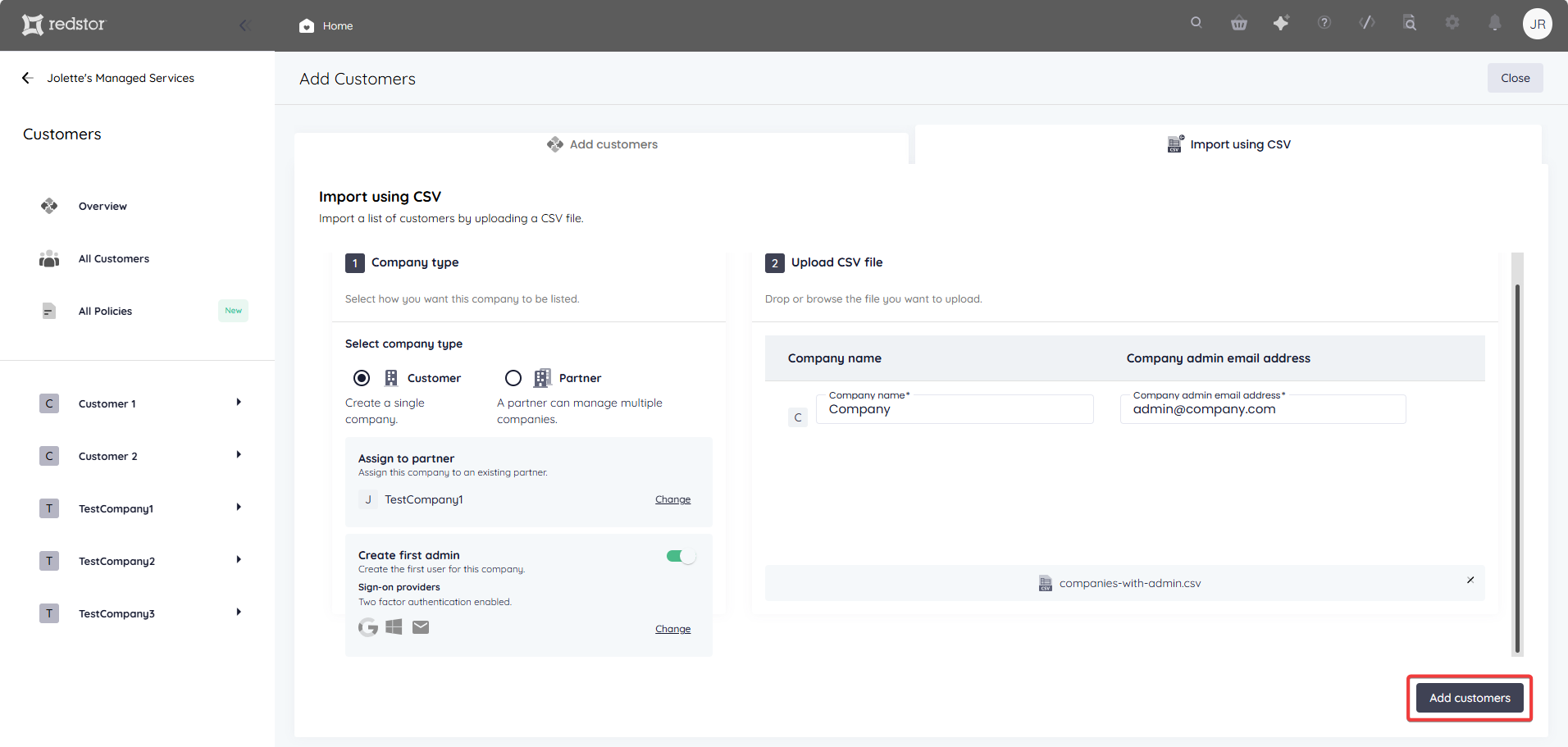
Once you have entered or uploaded all necessary customer names, click Add customers.
The names of your newly added customers will now appear in the sidebar.
How to move a customer to a different partner
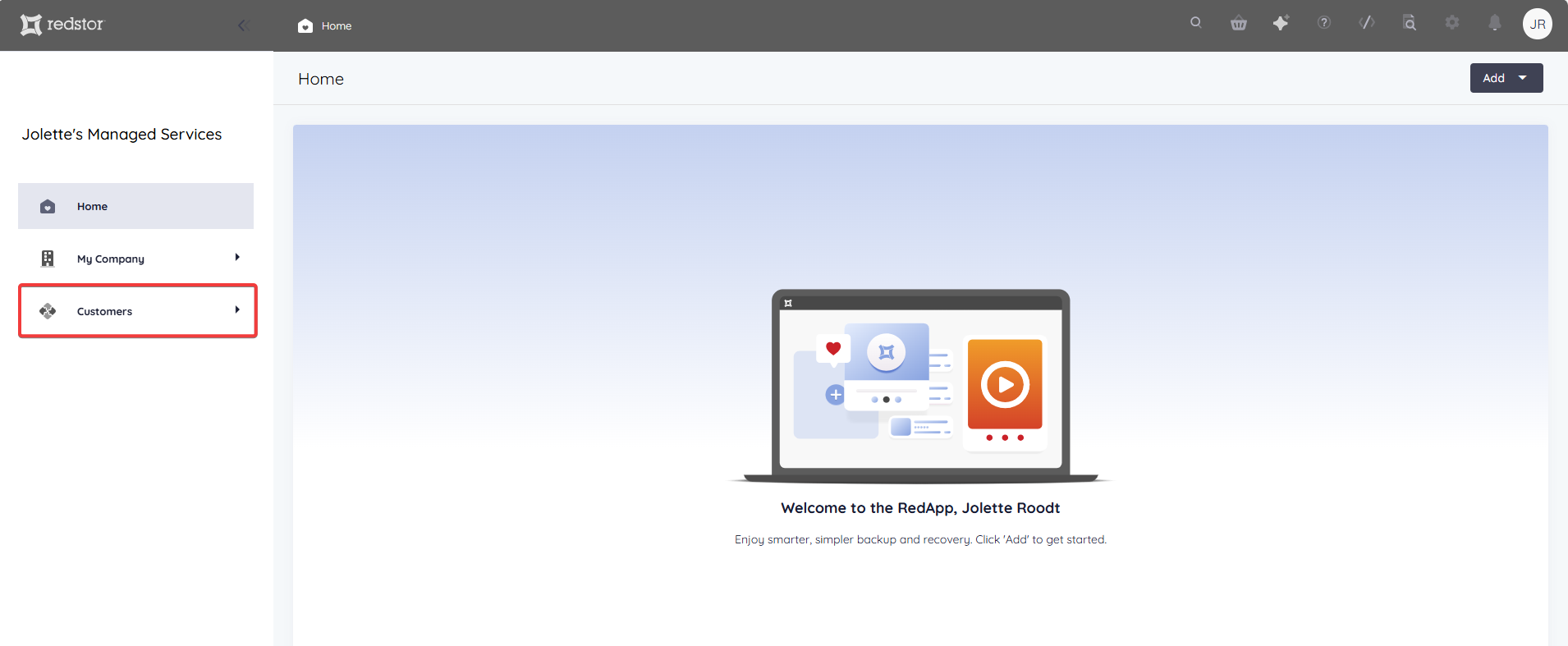
1. Go to Customers in the sidebar.
If you want to move one customer:
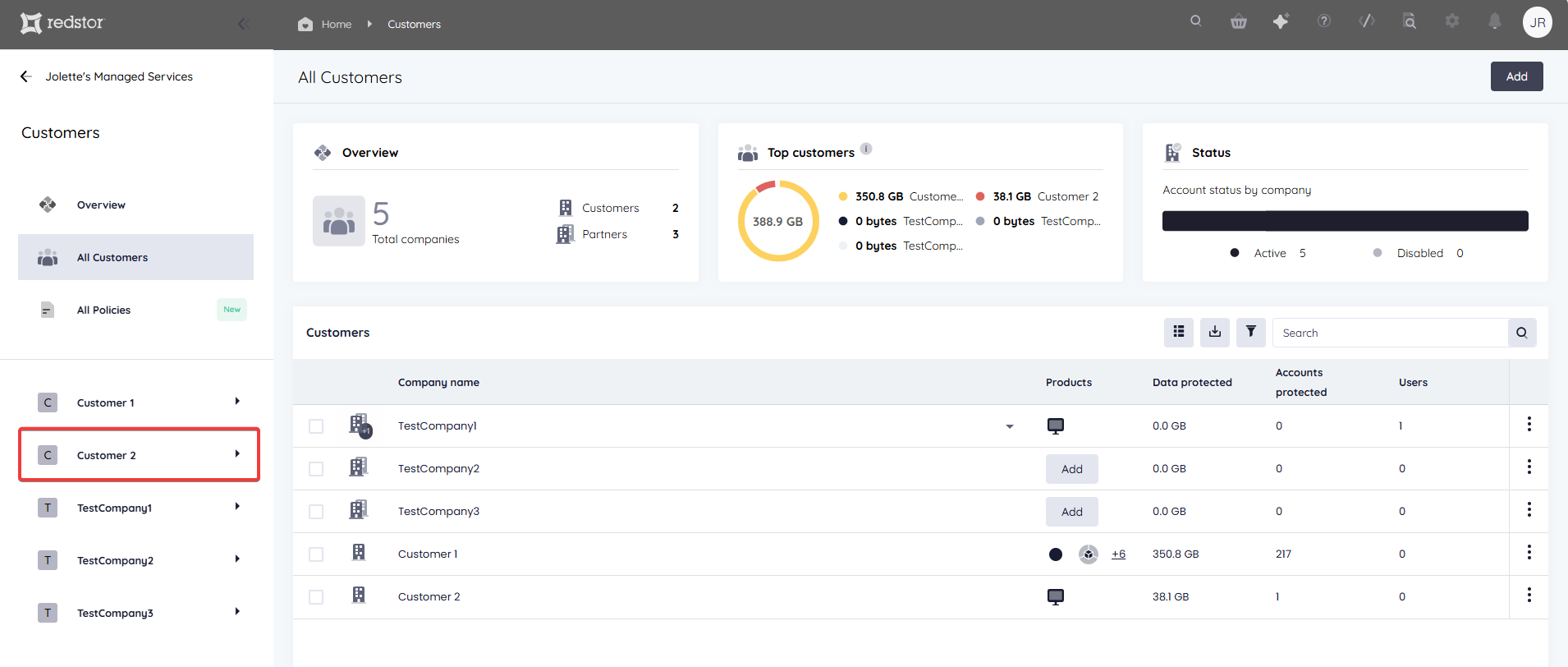
2. Click on the name of the customer you want to move (re-assign).
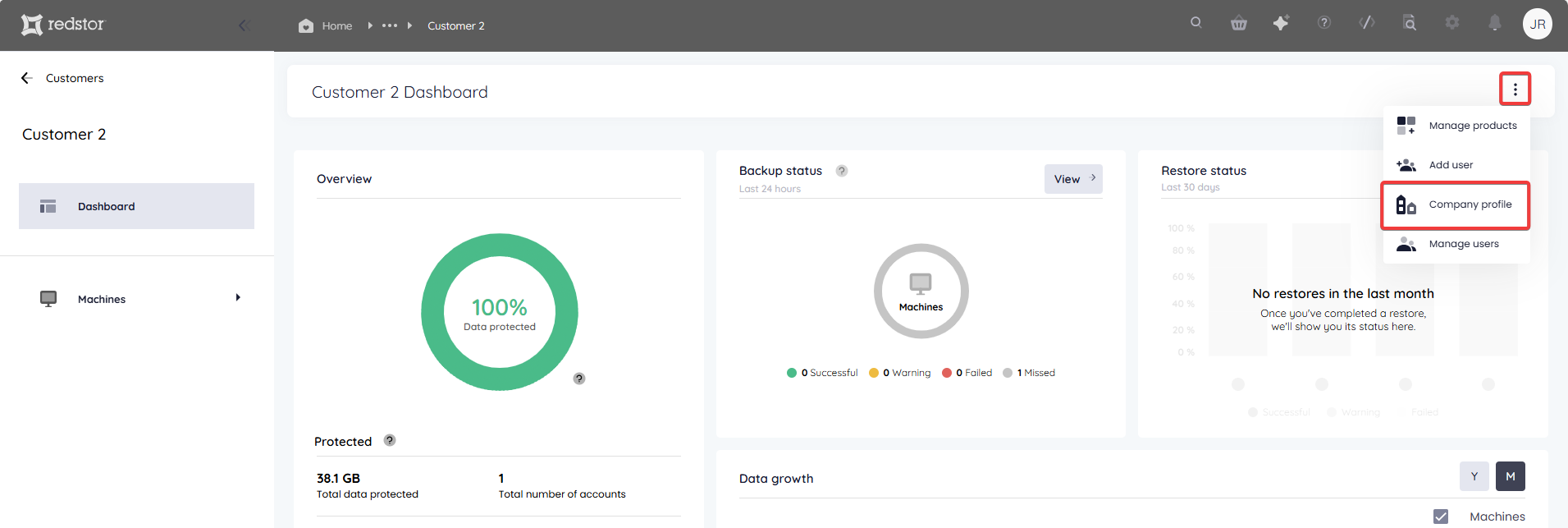
3. Expand the menu by clicking on the three dots at the top right. Go to Company profile.
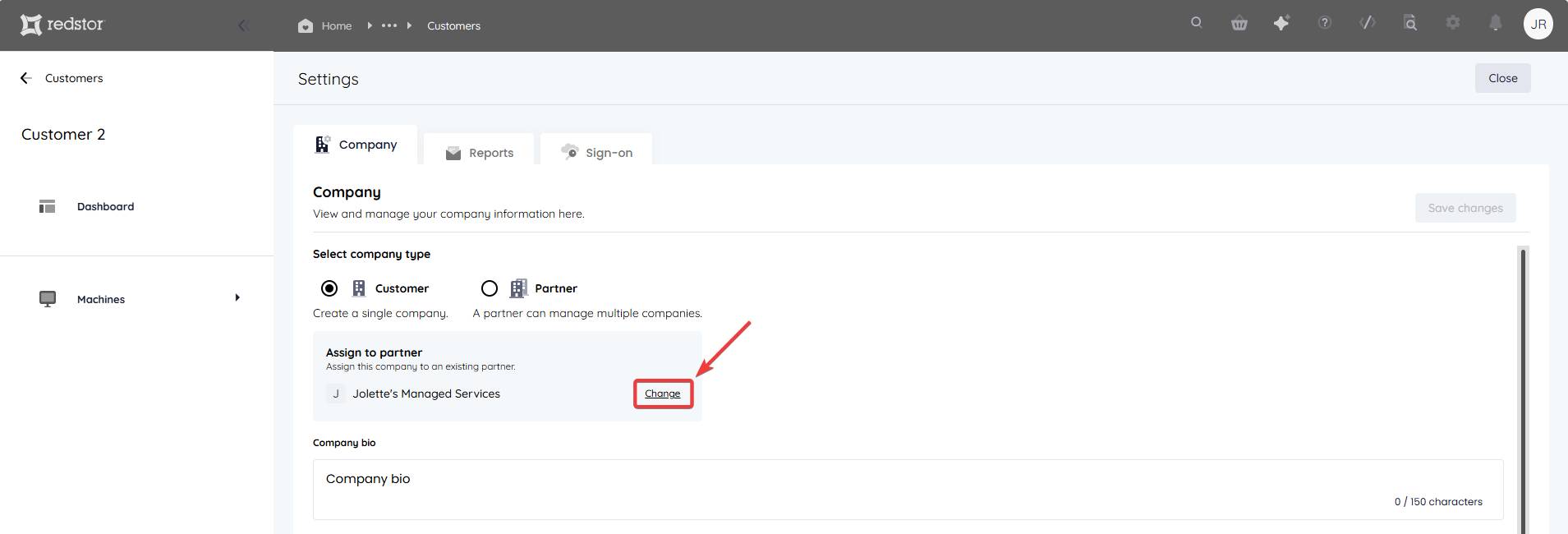
4. Under Assign to partner, click Change.
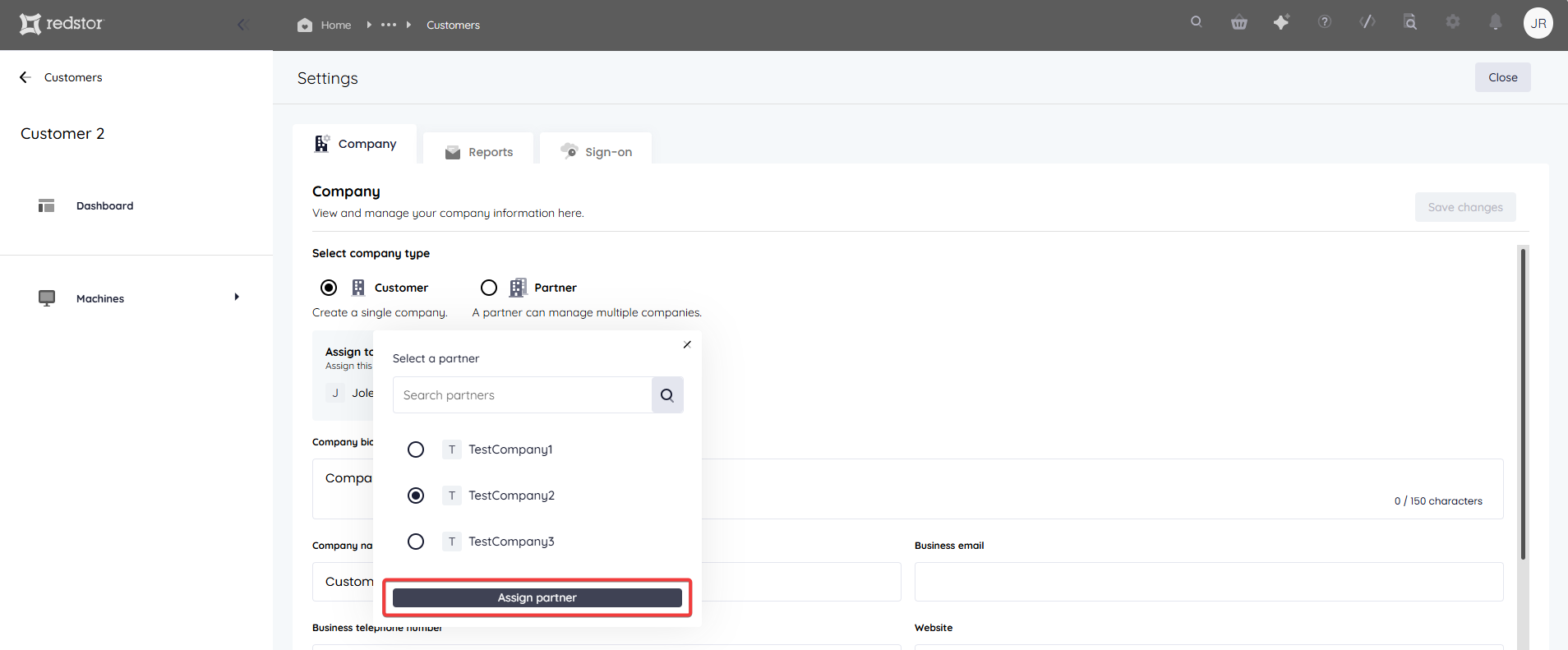
5. Select the partner you want to move the customer to, and click Assign partner.
If you want to move multiple customers:
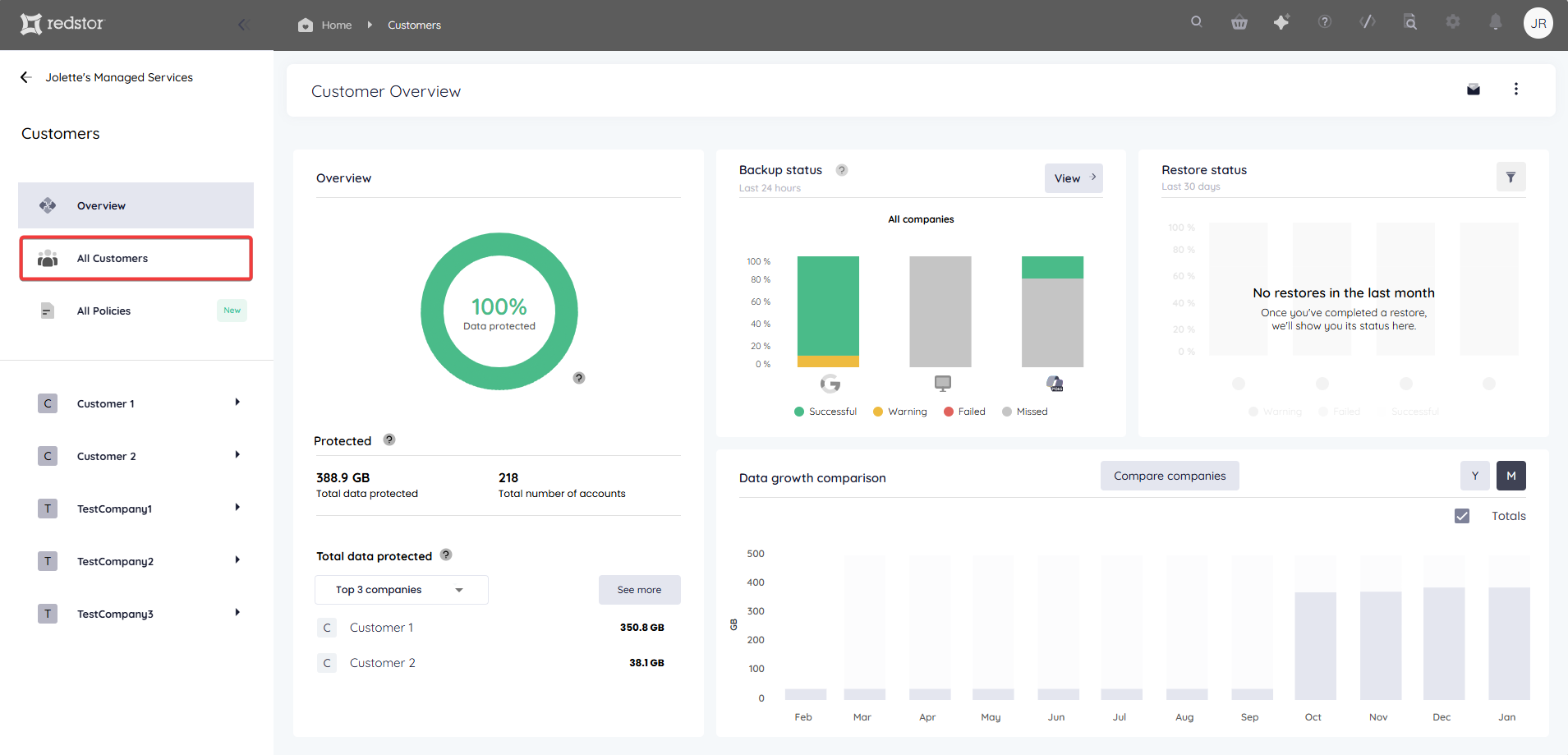
2. Go to Customers > All customers in the sidebar.
3. Check the boxes for the customers you want to move. At the bottom right, click on Edit > Re-assign to a different partner.
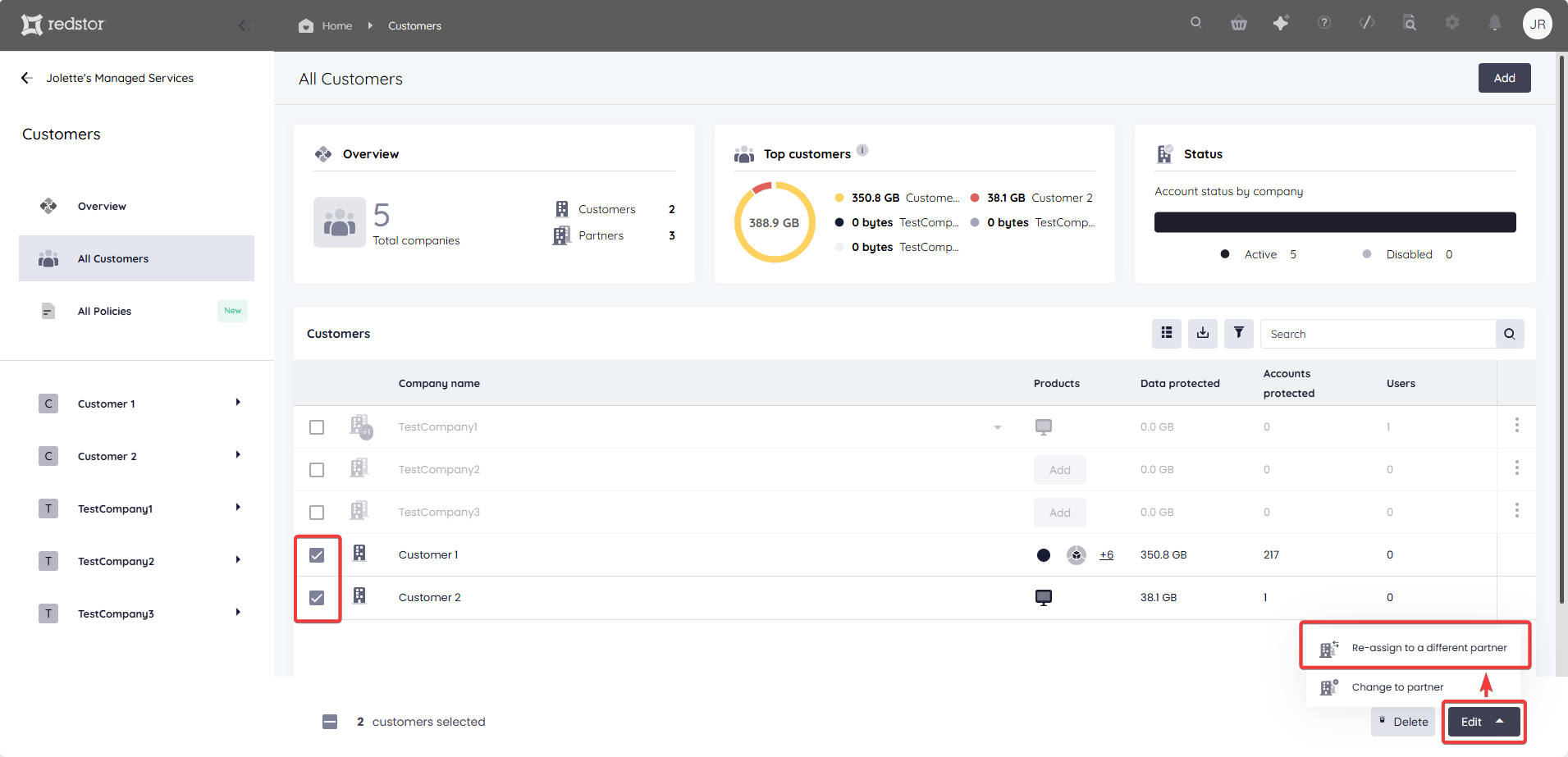
4. Select the partner you want to move the customer to, and click Assign partner.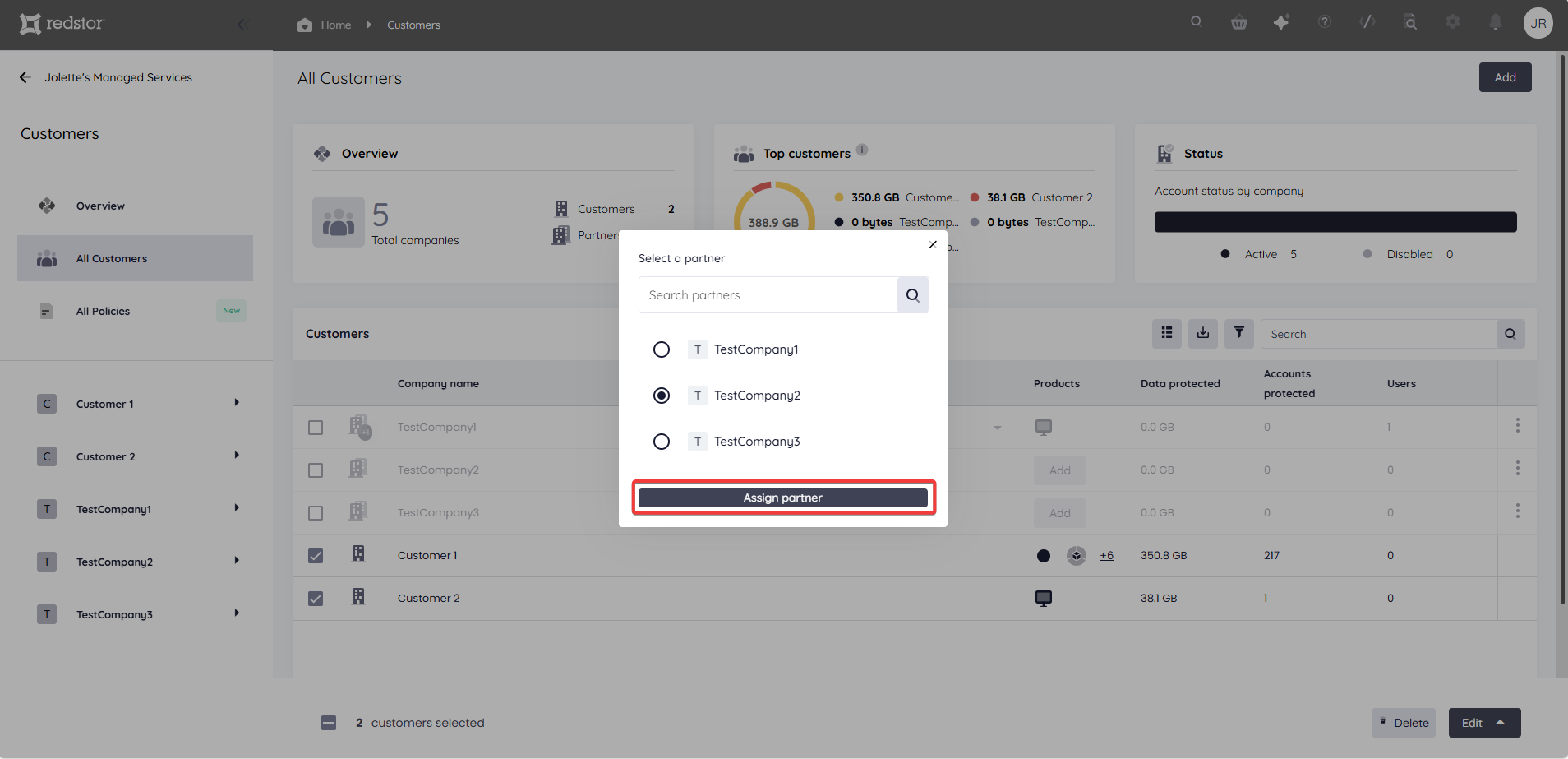
Note:
- Bulk selection is possible for customers, but not for a combination of customers and partners.
- Depending on the user performing this action, the partner options that are visible under Re-assign to a different partner may be limited. To ensure visibility of all partners, this action should be performed by a role with the highest level of permissions, or at a minimum by a role with visibility on both the current and the new partner.
How to edit a customer/partner
To make changes to a customer/partner, expand the menu for their listing on the All customers page and go to Company profile.
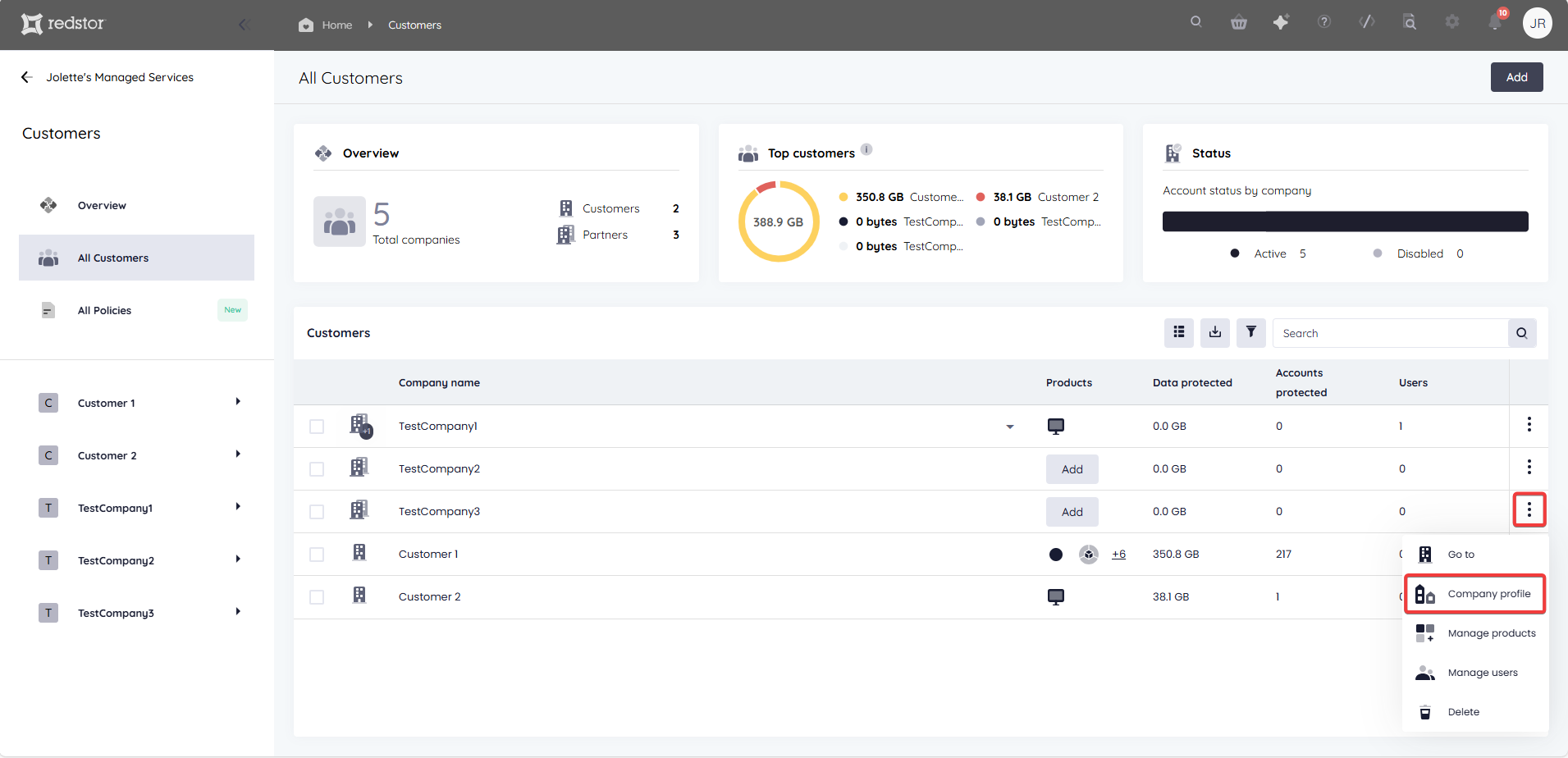
On their company profile, make the desired changes.
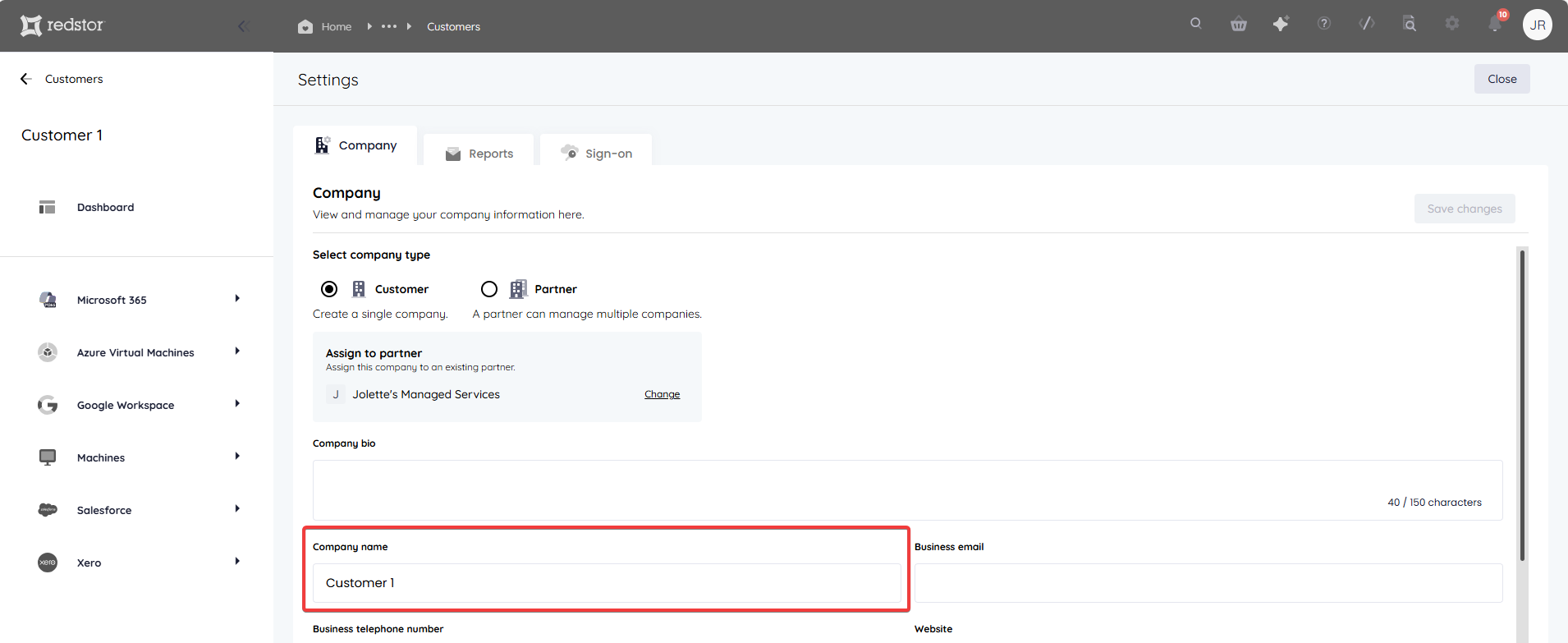
- You can change the company type from a customer to a partner by switching the radio button.
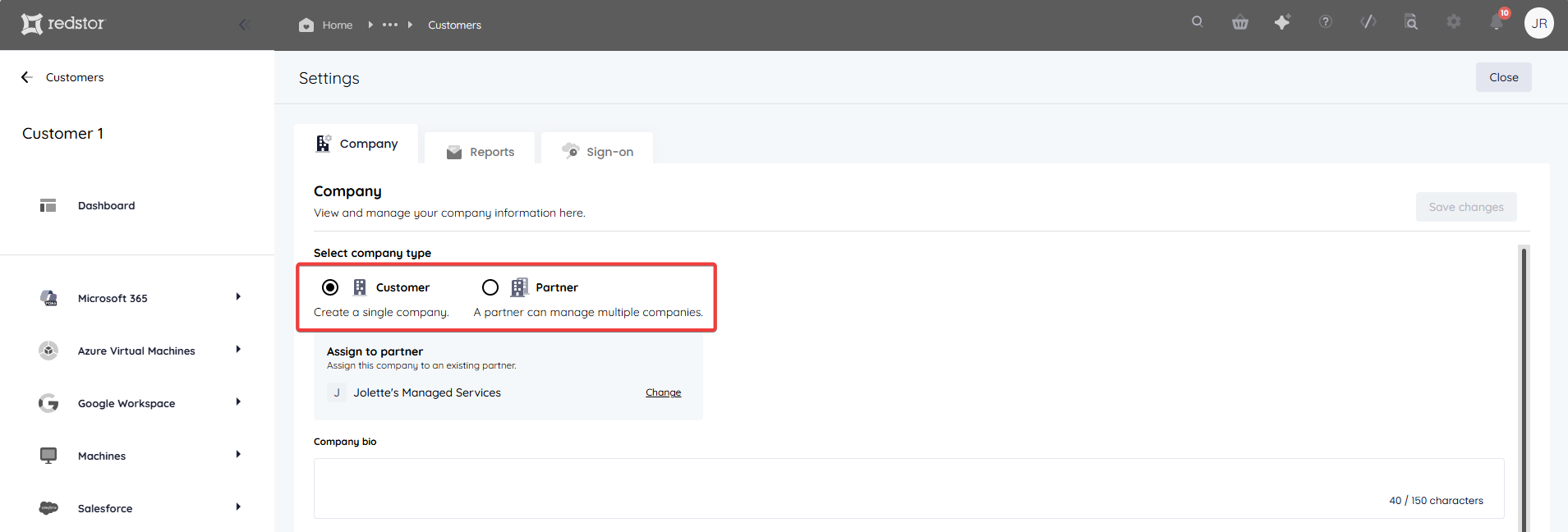
This can also be done in bulk from the All customers page. Select the companies you want to change, then go to Edit > Change to partner.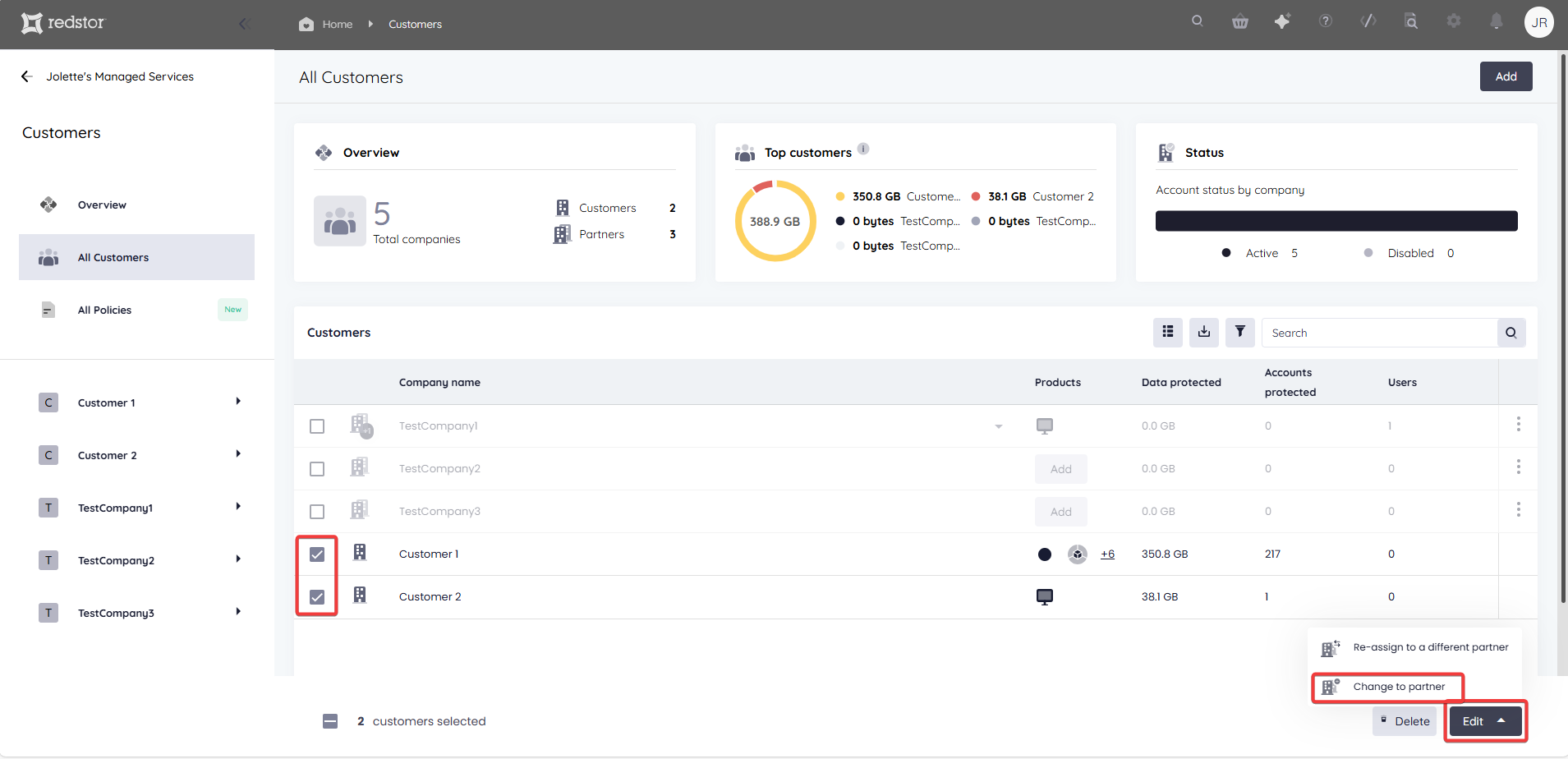
- You can change the customer name.
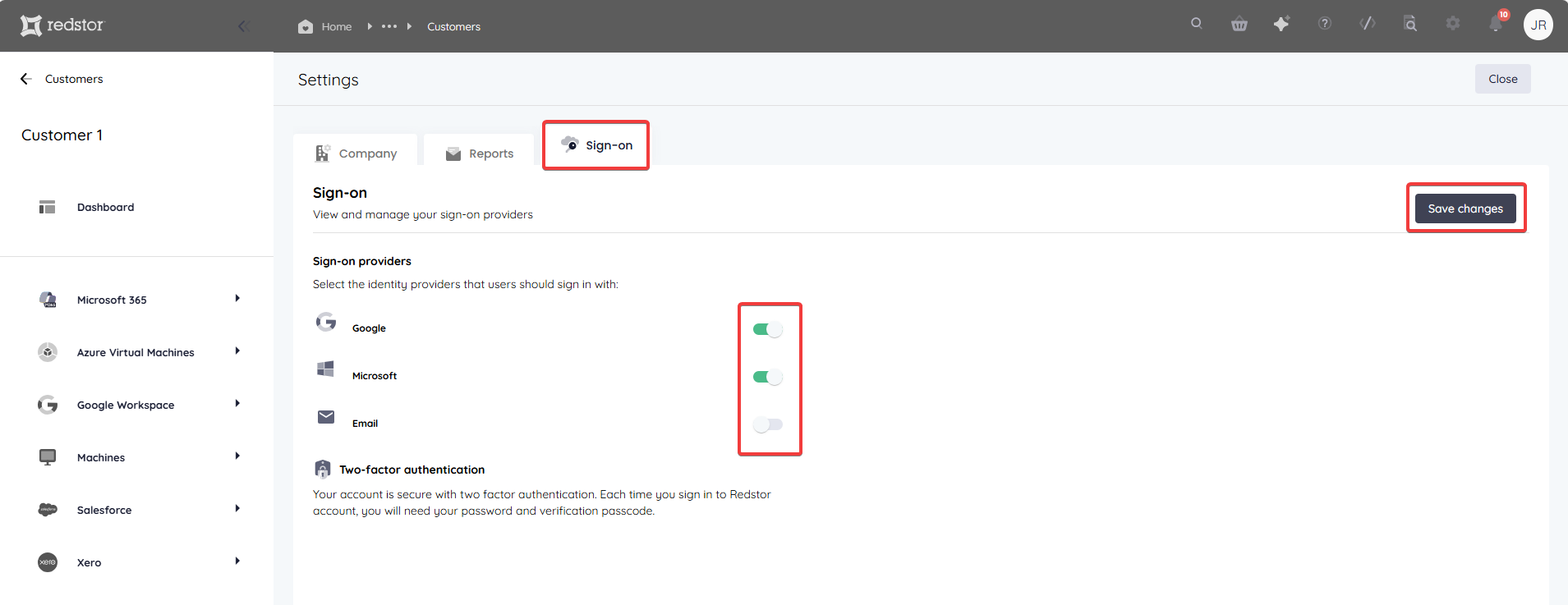
- You can change which identity providers this customer can use, by going to the Sign-on tab. Once you have made your changes, click Save changes.
How to delete a customer/partner
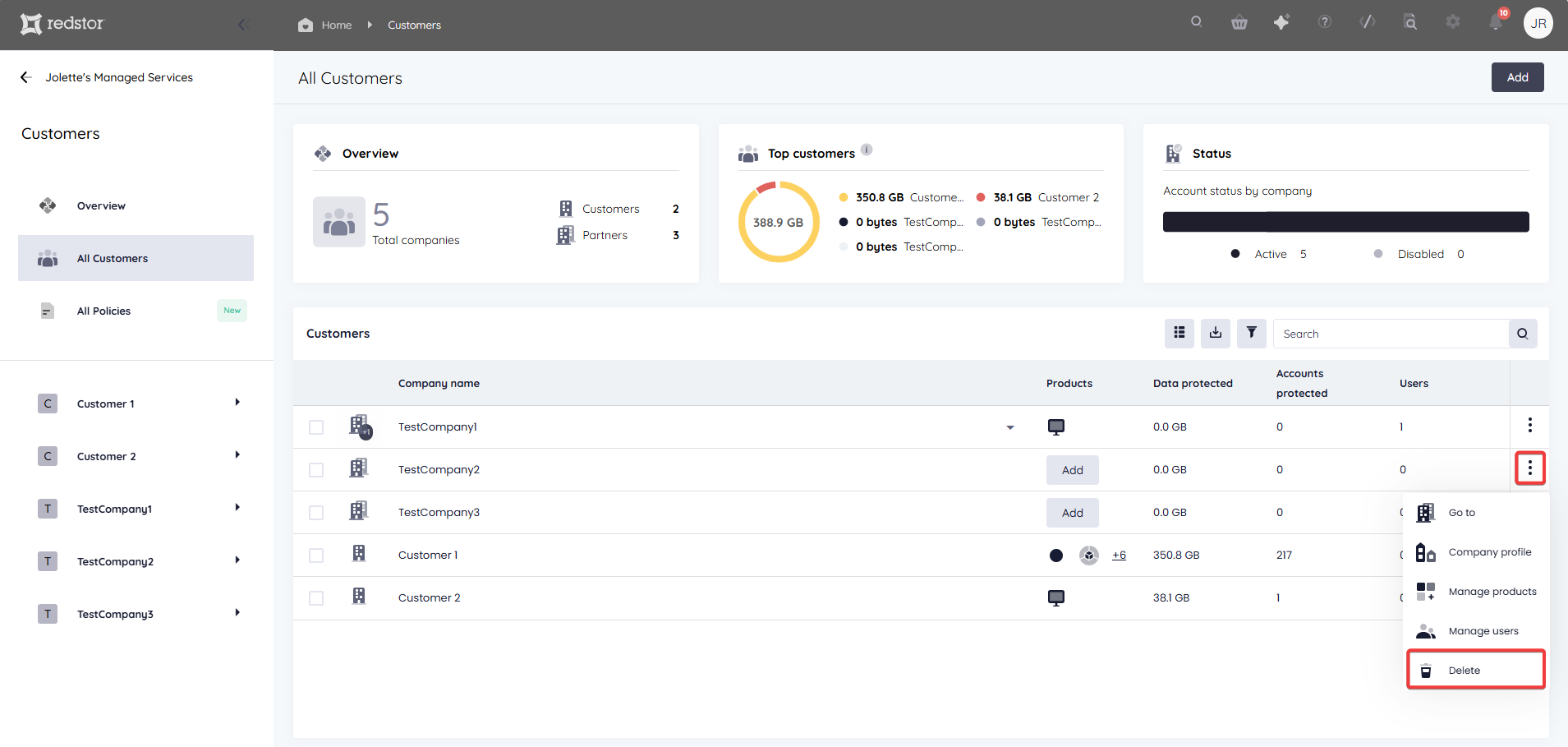
1. On the All customers page, locate the relevant customer/partner. Expand its menu and click Delete.
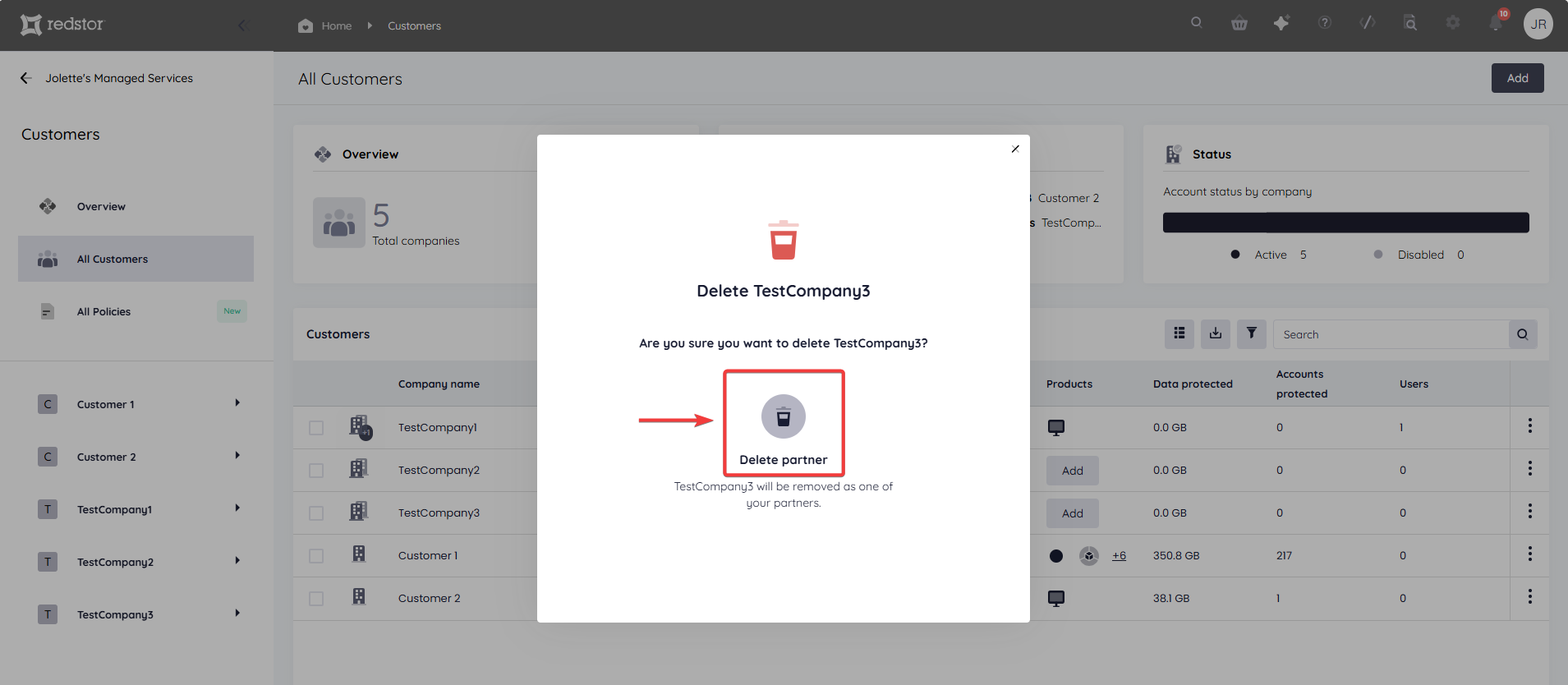
2. Confirm the action by clicking Delete customer (or Delete partner).
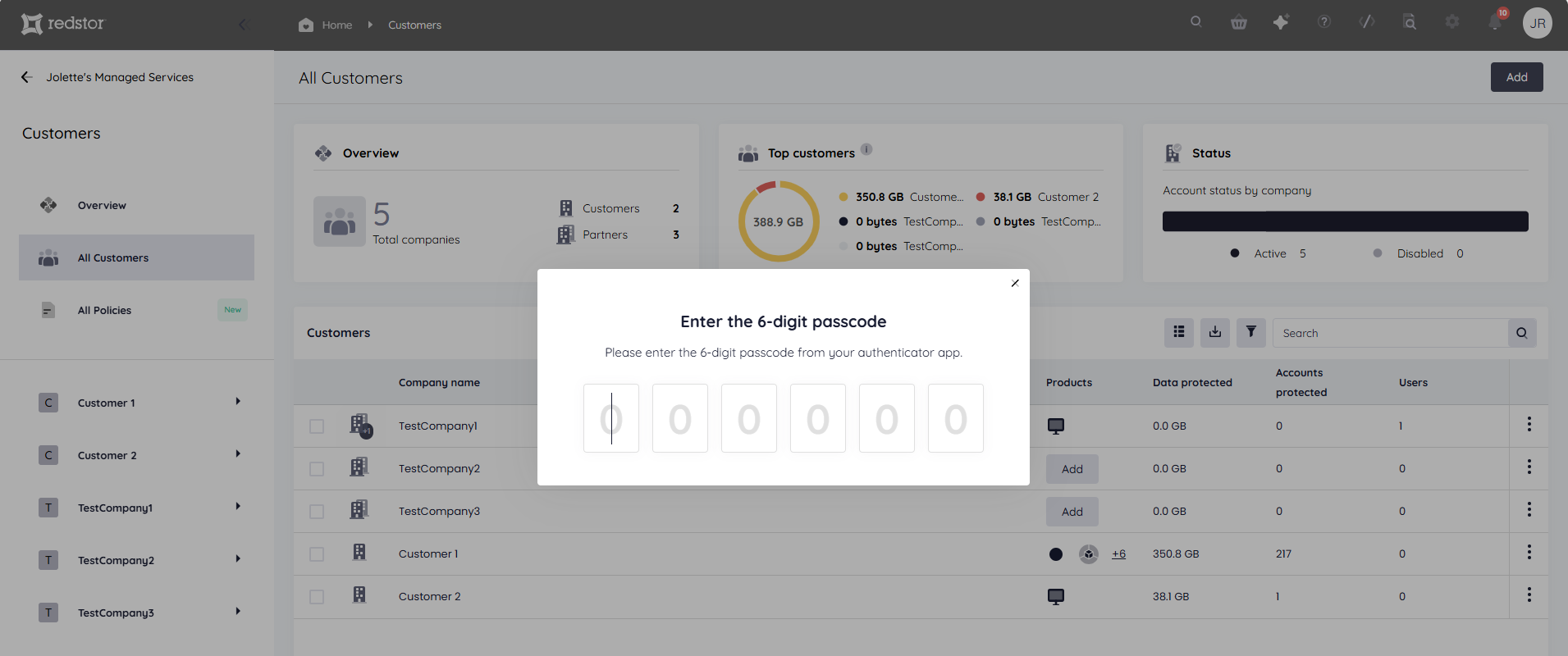
3. Authenticate with your RedApp user by entering the one-time pin shown on your authenticator app.
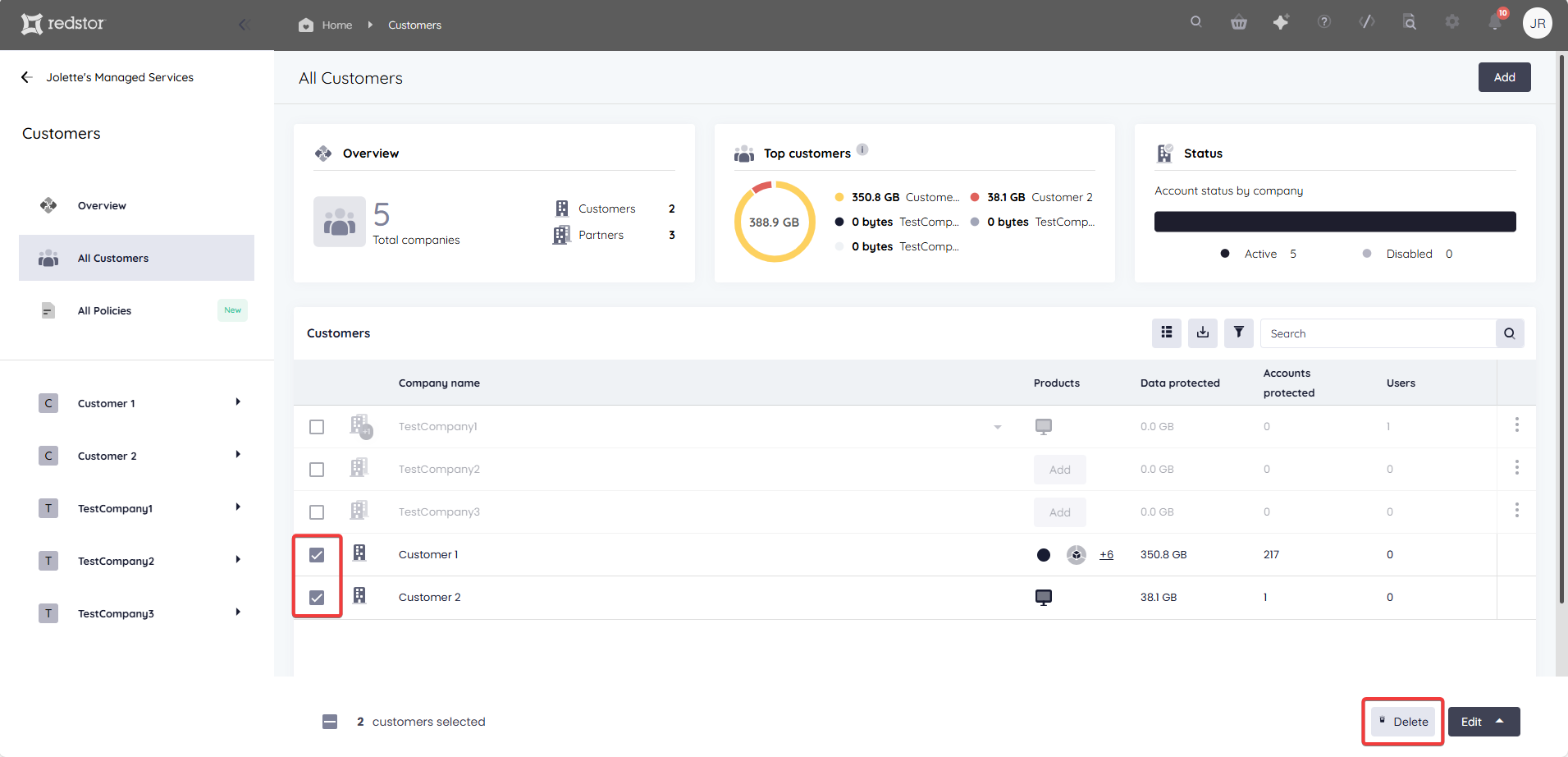
Customers (but not partners, nor a combination of the two) can also be deleted in bulk.
Was this article helpful?
That’s Great!
Thank you for your feedback
Sorry! We couldn't be helpful
Thank you for your feedback
Feedback sent
We appreciate your effort and will try to fix the article