If you need to revoke Redstor's access to your cloud application data as part of the offboarding process, please follow the steps below for the relevant application.
- How to remove permissions for Microsoft 365
- How to remove permissions for Google Workspace
- How to remove permissions for Xero
- How to remove permissions for Salesforce
How to remove permissions for Microsoft 365
1. Log into the Azure Portal with a global admin account.
2. Open Azure Active Directory.
3. Under Manage, click on Enterprise applications.
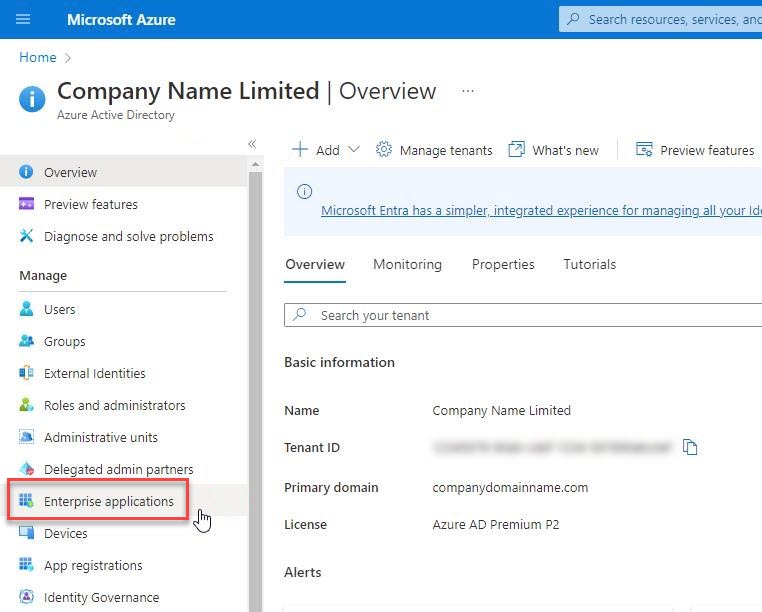
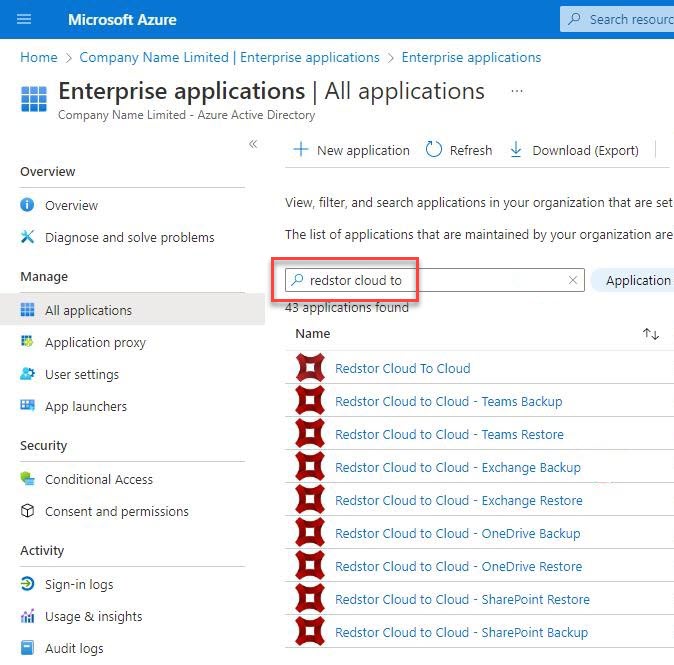
4. Search for the relevant applications (their names will begin with "Redstor Cloud to Cloud"). There will be one or more results depending on when you started using Redstor's cloud services, and which services you used.
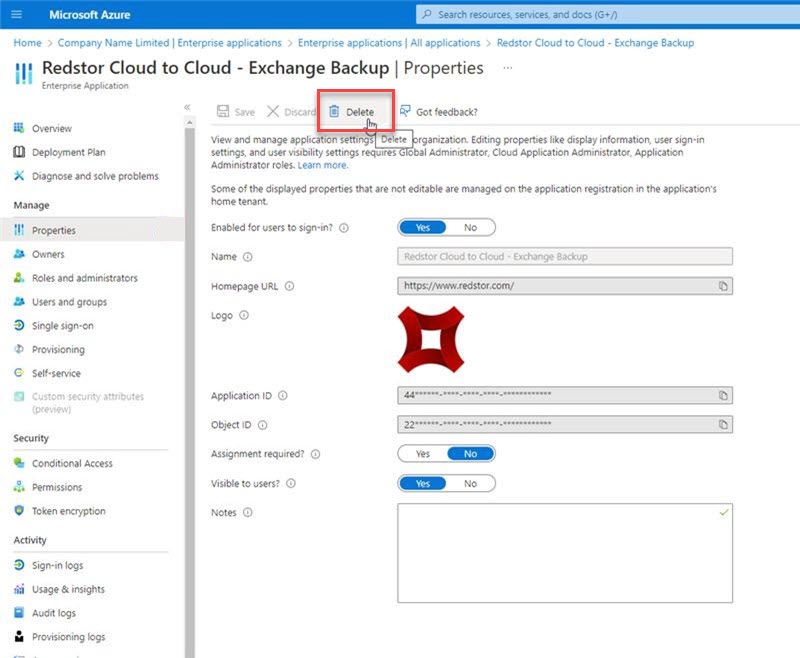
5. You will need to repeat the next step for each application: Open the application, then under Manage, click on Properties. Click Delete to remove Redstor's access to this application.
Note: If you remove access to an application while you still have a backup set of it on the RedApp, all backups of that set will fail.
It is also possible to remove these permissions using PowerShell:
- Connect to Azure AD PowerShell:
Connect-AzureAD - Get the list of enterprise applications in your tenant:
Get-AzureADServicePrincipal - Record the object ID for each application to be deleted (the names start with "Redstor Cloud to Cloud")
- Delete the enterprise application:
Remove-AzureADServicePrincipal $ObjectId '12345678-90ab-cdef-1234-567890abcdef'
How to remove permissions for Google Workspace
1. Log into the Google Cloud console.
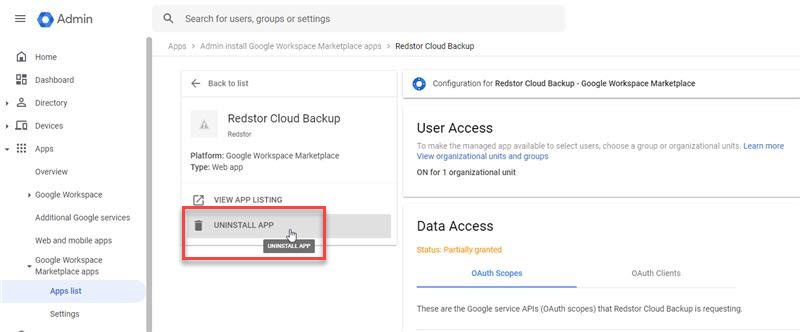
2. Go to Apps > Google Workspace Marketplace apps > App list.
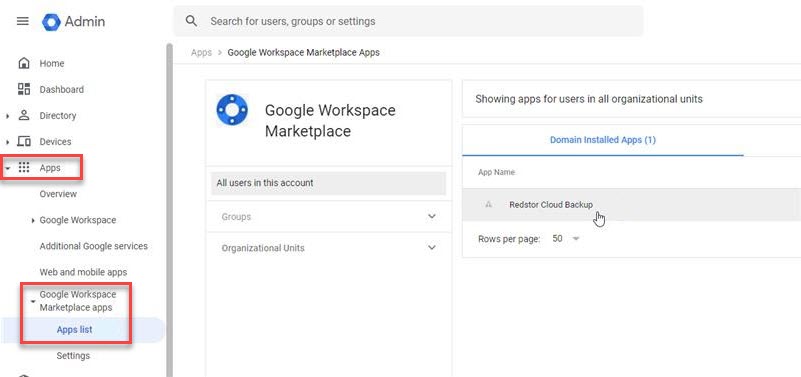
3. Open Redstor Cloud Backup and click on Uninstall App.
How to remove permissions for Xero
1. Log into Xero with an Advisor or Standard user role.
2. Open Organisation settings (quick link).
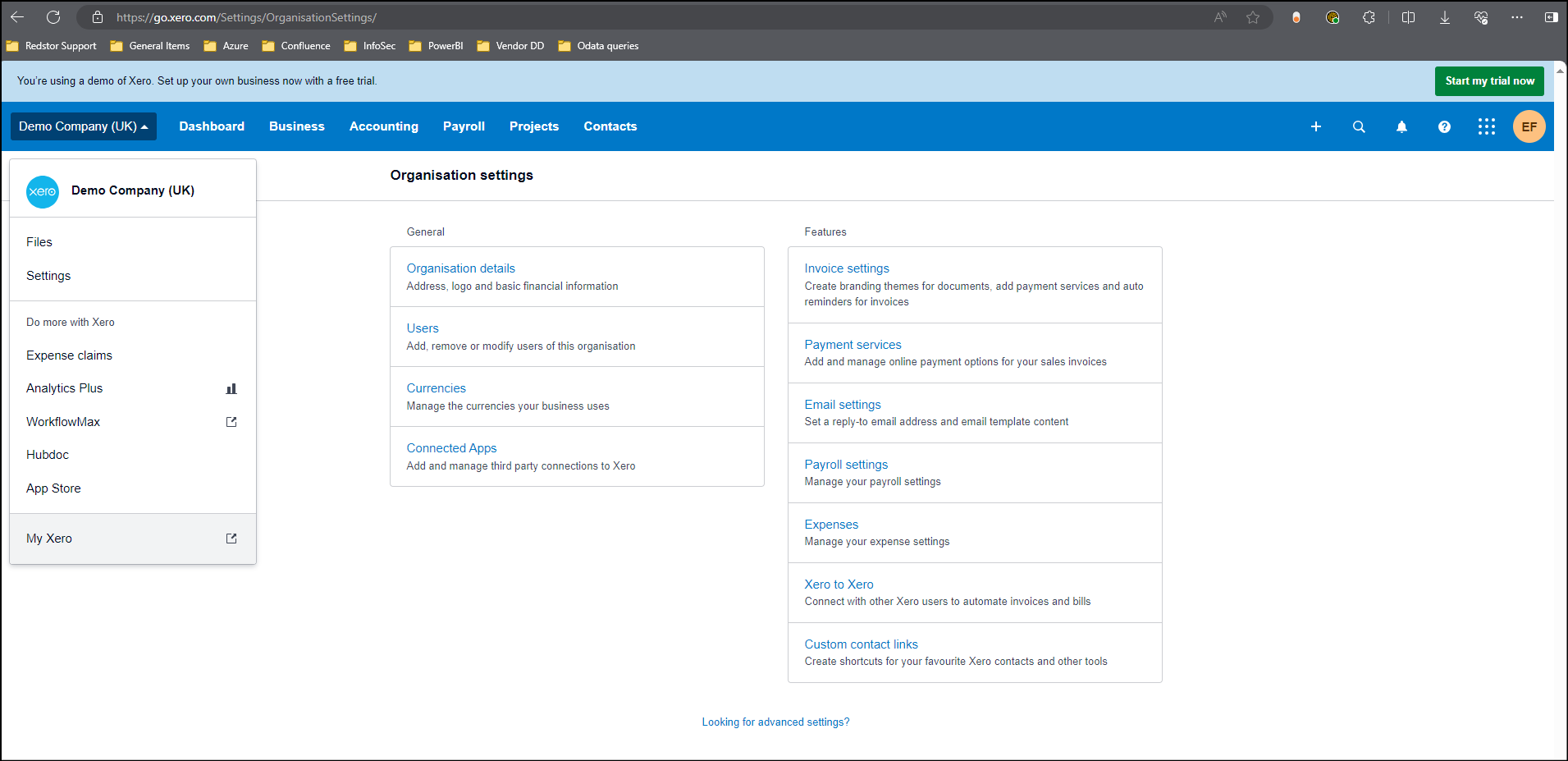
3. Under General, click on Connected Apps.
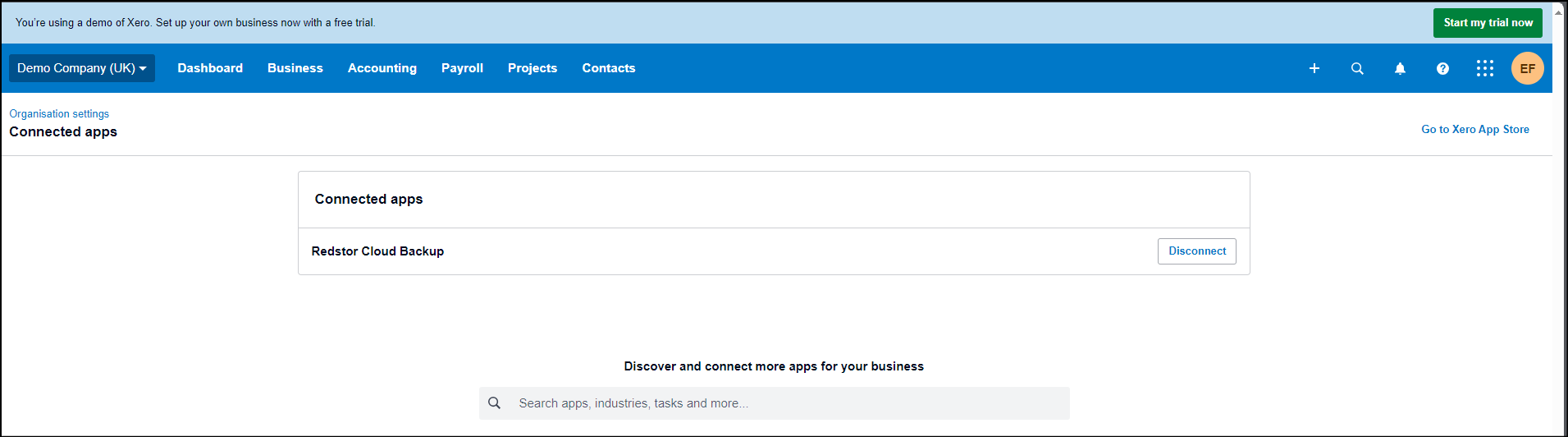
4. Disconnect the application Redstor Cloud Backup.
How to remove permissions for Salesforce
The information below is from this article in the Salesforce knowledge base.
The following user permissions are required to install and uninstall connected apps:
Customize Application AND either Modify All Data OR Manage Connected Apps
How to block Redstor's access to Salesforce:
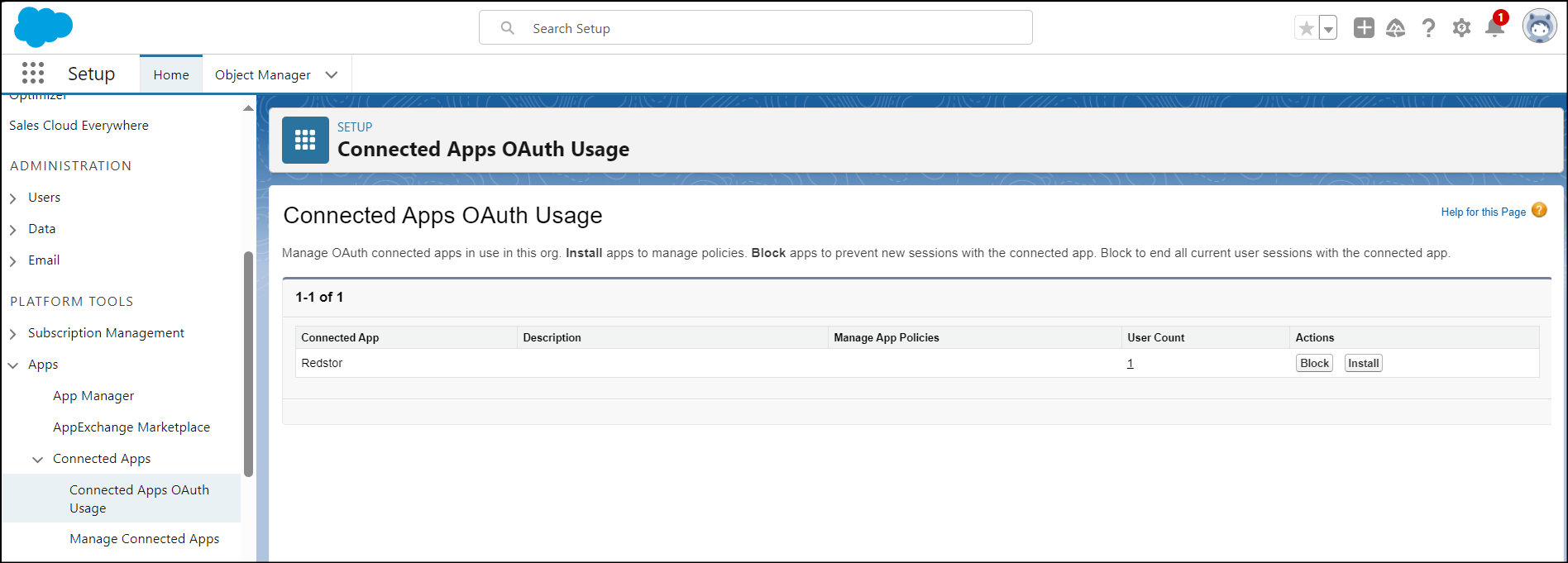
- From Setup, in the Quick Find box, enter OAuth, and then select Connected Apps OAuth Usage.
- Find Redstor in the list.
- To make the Redstor app inaccessible to your users, click Block. Blocking an app ends all current user sessions and prevents future sessions until you click Unblock.
Was this article helpful?
That’s Great!
Thank you for your feedback
Sorry! We couldn't be helpful
Thank you for your feedback
Feedback sent
We appreciate your effort and will try to fix the article