Important:
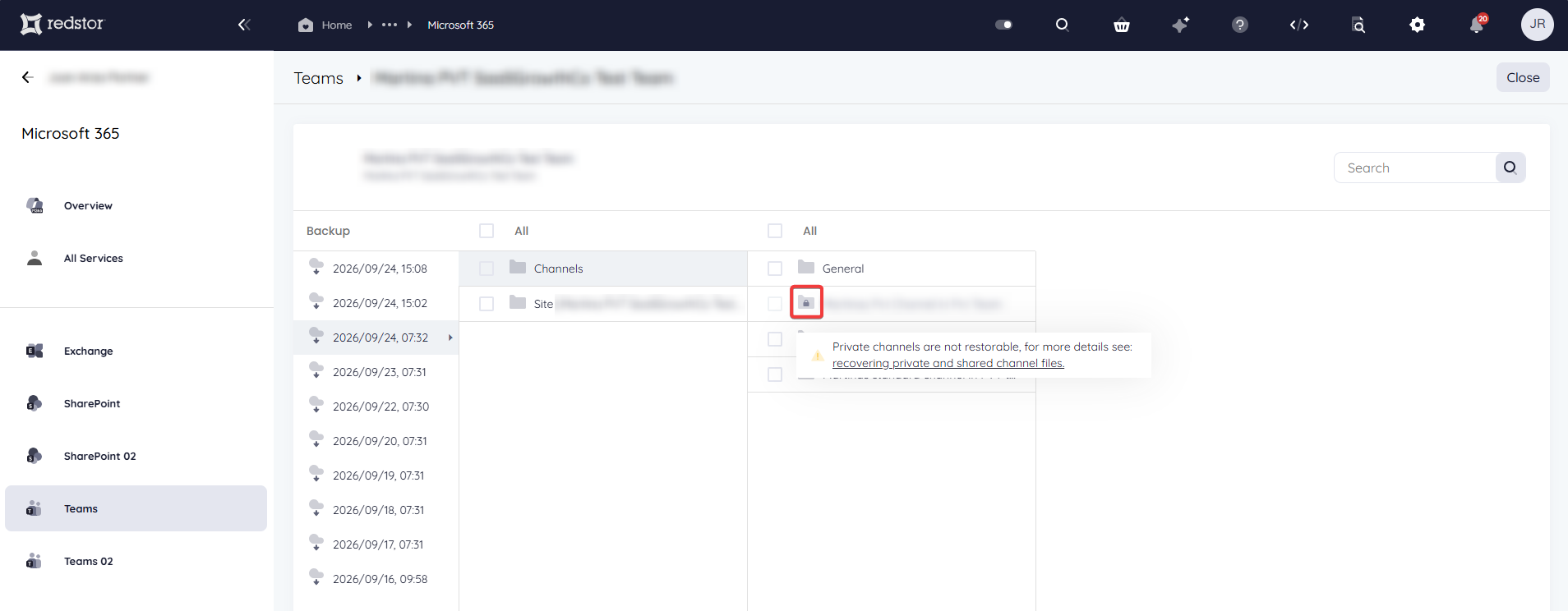
- Private channels cannot be restored back into Teams. You can recover their files and messages with InstantData and manually rebuild the channel in Teams, as described below.
- Do not run a standard Teams restore to recover a private channel. The restore will complete without errors, but it will create a new public team with only a General folder and none of the channel contents or members.
In the RedApp, private channels show a padlock and cannot be selected for restore.
PAGE CONTENTS
- Background
- Before you begin
- Recovering the channel files
- Recovering the channel messages
- Rebuilding the channel in Teams (optional)
Background
When a new Team is created in Teams, a linked SharePoint site of the same name is automatically created. When a user creates a private channel within that Team, however, a different site named {team}-{channel} is created in SharePoint. This is a Microsoft security measure to prevent any user who is a member of the Team but not of the private channel from accessing the files contained in the channel. This is also the reason these channels cannot be restored back into Teams.
Because of this, a private channel is backed up in two places:
- its files are in the SharePoint backup, in the {team}-{channel} site
- its messages and member list are in the Teams backup
Files attached to a message are also in the SharePoint backup. The message itself only holds a link to the file. To recover everything, you need both backups.
Files in standard Teams channels are not affected by this Microsoft security measure and can be restored into a Teams instance. For more information on the different types of channels, see this article from Microsoft's knowledge base: Standard, private, or shared channels in Microsoft Teams | Microsoft Support.
Private channels are not the same as private chats (direct messages), which cannot be recovered.
Before you begin
- Private channel files cannot be restored back into Teams through a New folder restore, but can be restored using the InstantData application, which is only supported on Windows. You will therefore need a Windows machine to complete the steps below.
- If the Teams channel is new, check that its {team}-{channel} site is in your SharePoint backup set. A new site can take some time to appear there, and its files are not protected until it does.
Recovering the channel files
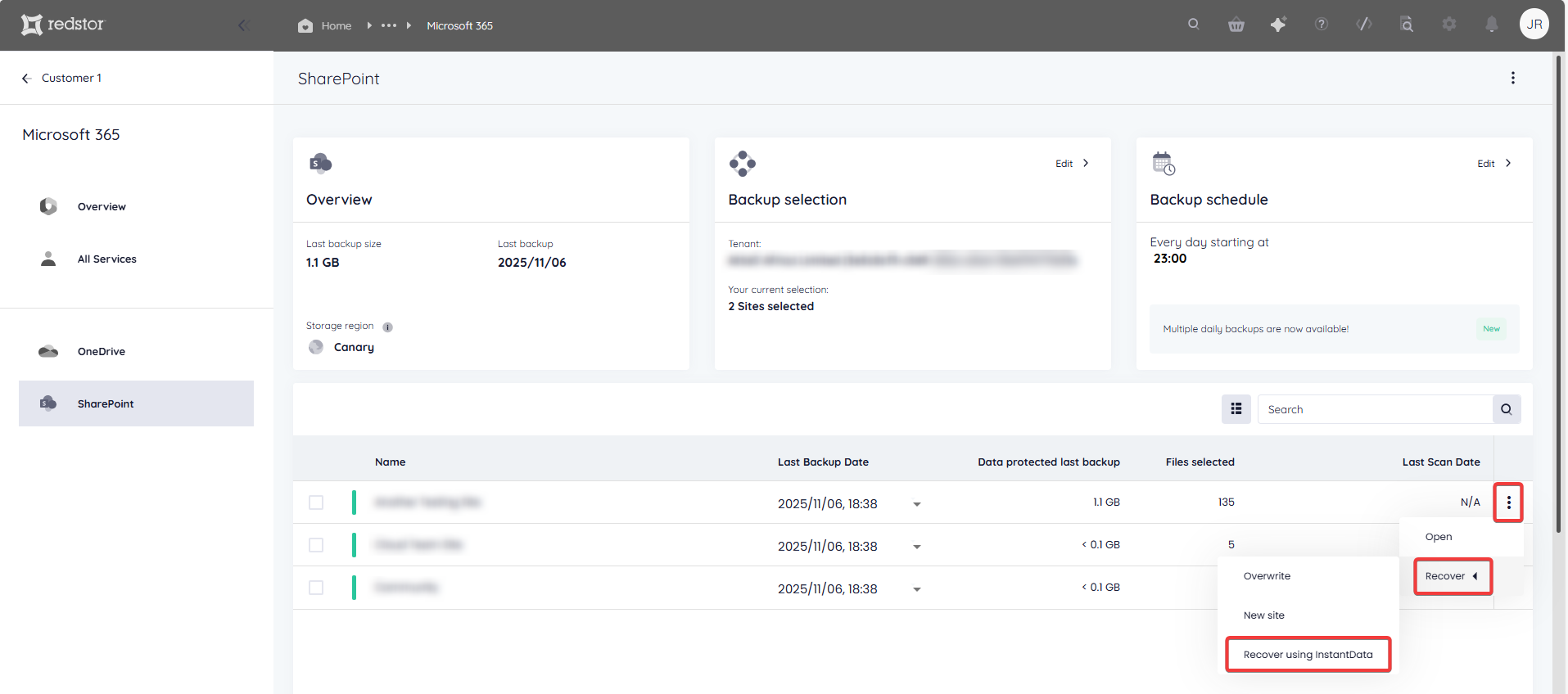
1. In the RedApp, open the SharePoint backup set.
2. Locate the {team}-{channel} site you want to restore. Expand the menu to its right and go to Recover > Recover using InstantData.
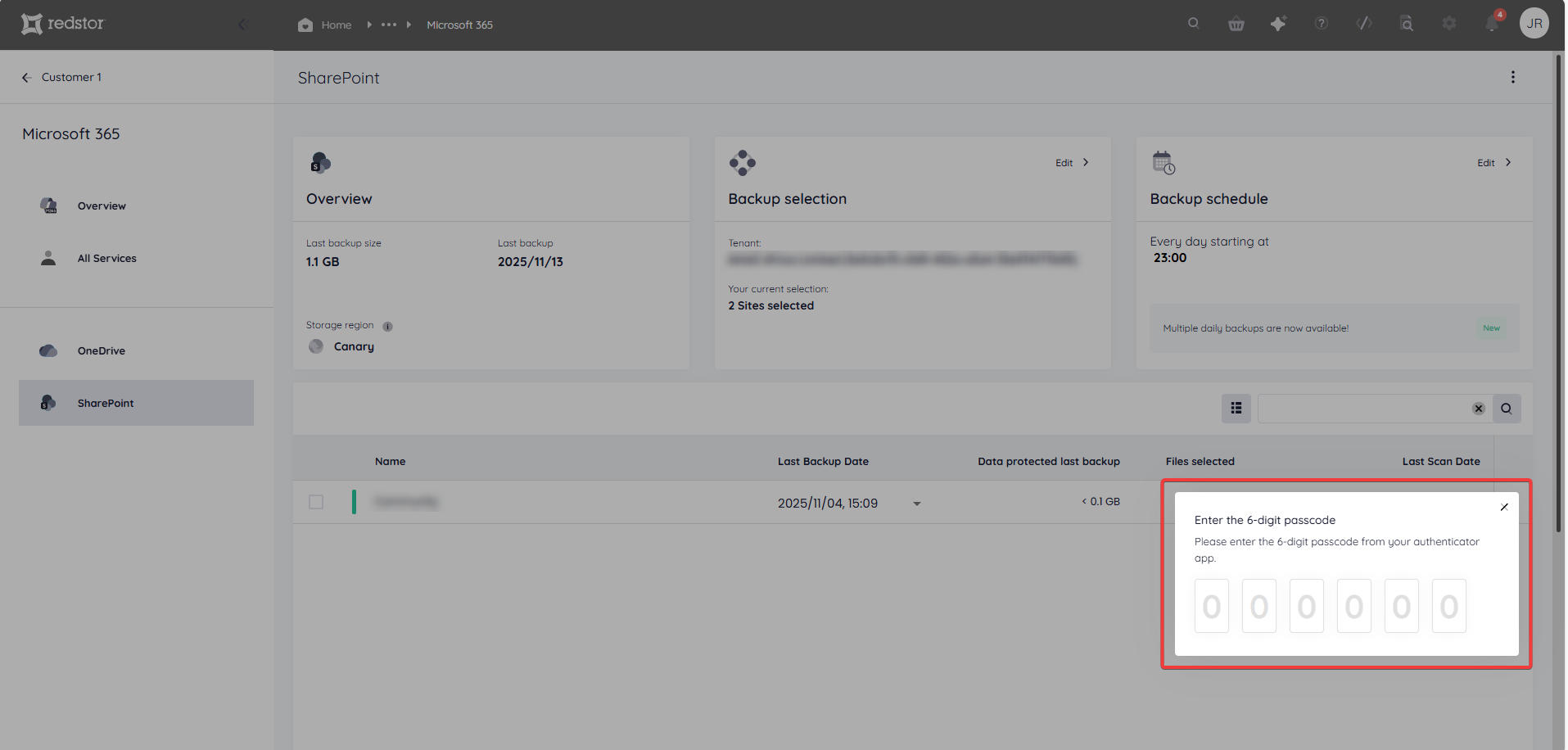
3. You will need to authenticate with your RedApp user through a one-time pin.
4. You will also need to authenticate with an appropriate Microsoft 365 user (global admin for first recovery, global or SharePoint admin for subsequent recoveries).
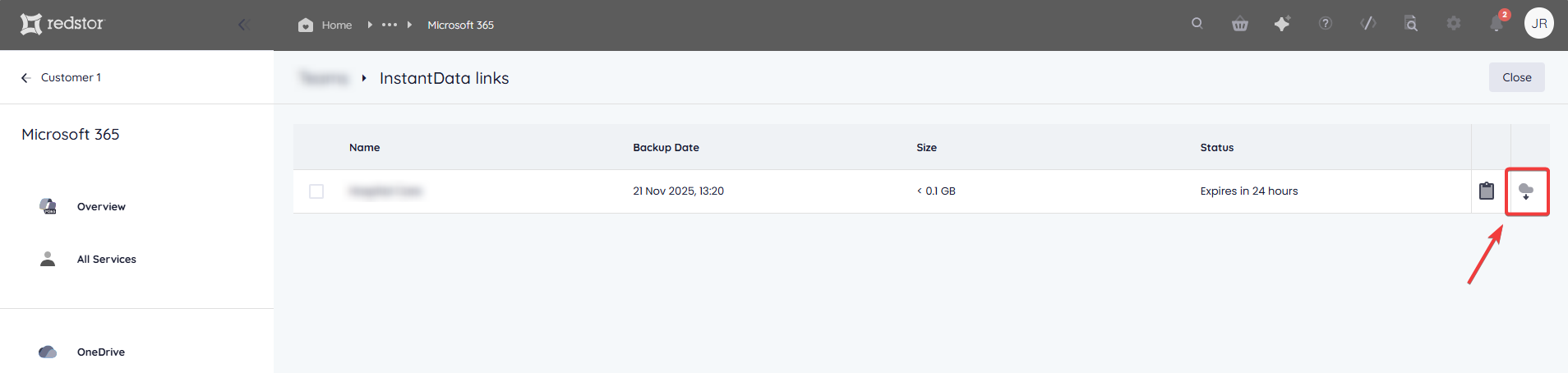
5. Download the InstantData application. InstantData links are valid for 24 hours.
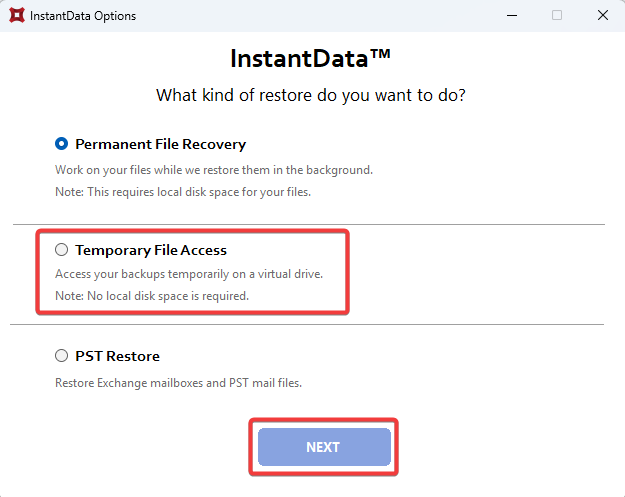
6. Run the application on the machine where you want to recover the data. Select Temporary File Access and click Next.
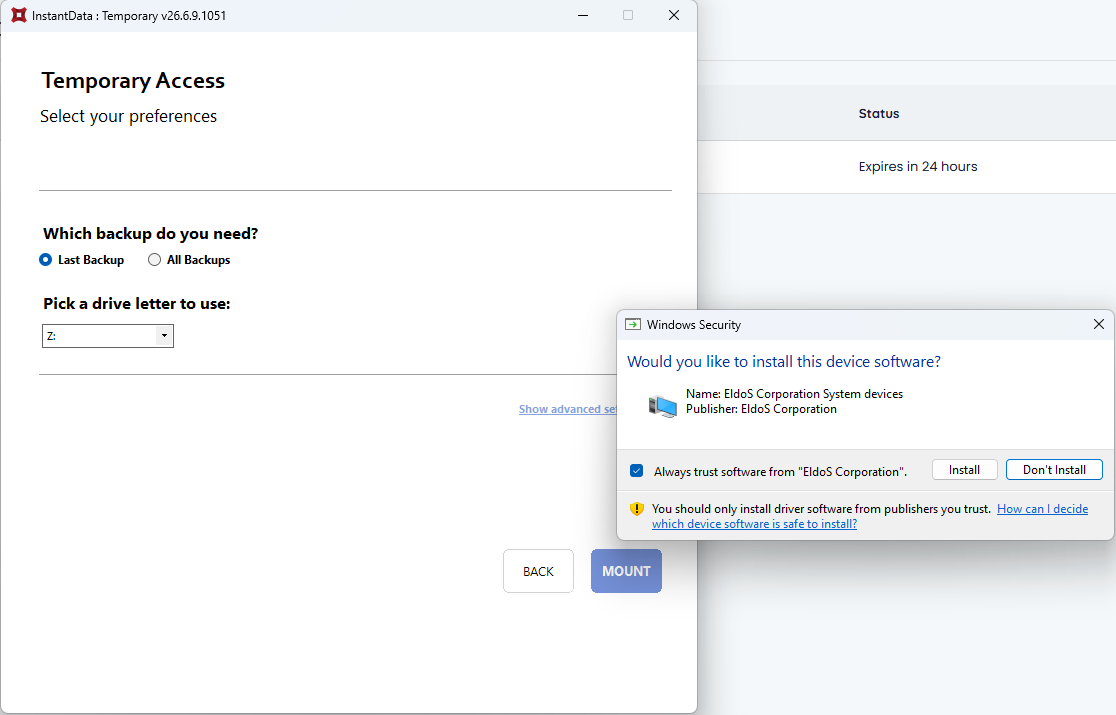
7. Choose Last Backup, or All Backups to see older backups. Pick a drive letter and click Mount.
8. The first time you use InstantData Temporary on a machine, Windows will ask you to install device software from EldoS Corporation (more information here). Click Install.
9. A new drive named InstantData (Temporary) will appear on the machine. Open this drive, then open the folder with the backup date (timestamp) as its name. In the site folder, you will find Shared Documents, from where you can copy the files you need onto the machine.

Recovering the channel messages
1. In the RedApp, open the Teams backup set.
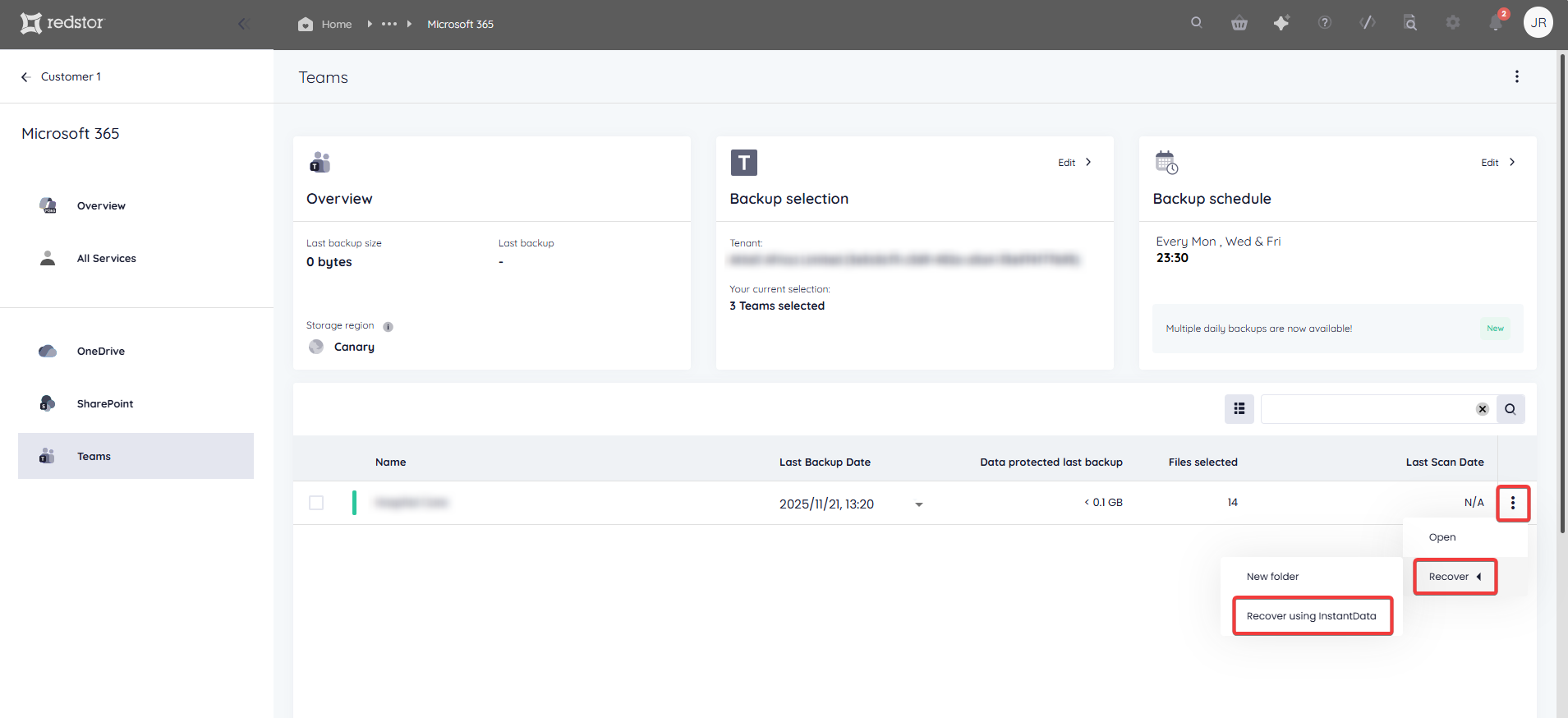
2. Locate the team you want to restore. Expand the menu to its right and go to Recover > Recover using InstantData.
3. Follow steps 3 to 7 above.
4. A new drive named InstantData (Temporary) will appear on the machine. Open this drive, then open the folder with the backup date (timestamp) as its name. In the Teams folder, drill down into the specific team folder, then into the folder named 1_Channels.
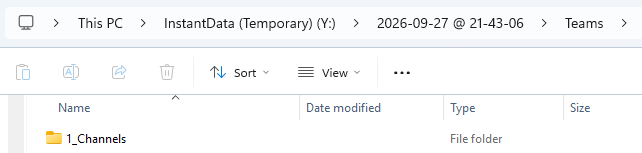
5. The channel folders are named with IDs. To find a specific private channel, open the channelsettings.json file in each channel folder and look for displayName. A private channel also has "membershipType": 1.
6. Open the Messages folder. Each post is a JSON file, with its replies inside. You can open this in Notepad. The title is under Subject and the text under Content.

Rebuilding the channel in Teams (optional)
To bring the channel back into Teams, you can rebuild it using the following steps:
1. Create a new private channel in the team. Use a new name, as Microsoft blocks reuse of channel names even after deletion.
2. Add the members. You can find them under Members in the channelsettings.json file.
3. Upload the recovered files to the Files tab of the new channel.
4. If you need the messages, paste their text into a Word or PDF file and upload this to the channel.
5. Check that the new {team}-{new name} site is in your SharePoint backup set.
Was this article helpful?
That’s Great!
Thank you for your feedback
Sorry! We couldn't be helpful
Thank you for your feedback
Feedback sent
We appreciate your effort and will try to fix the article